GraphQL Editor
The GraphQL Editor Pro Feature is your workspace for creating custom queries in Builderius. Located in the Dynamic Data tab, it provides a complete environment for writing, testing, and managing GraphQL queries with syntax highlighting, live preview, and pre-built snippets.
Opening the GraphQL Editor
Access the GraphQL Editor through the Dynamic Data tab in the bottom toolbar of the Builderius interface. The GraphQL Editor has five main elements:

- Panel Access - Dynamic Data tab in bottom toolbar
- Variable Management - Create and organize data variables on the left
- Code Editor - Write GraphQL queries with syntax highlighting
- Snippets Panel - Access pre-built query templates
- Data Preview - Test queries and view JSON results
Data Variables
Data variables are named containers for your GraphQL queries - think of them as files where you store your query code, which can be referenced multiple times.
Creating Variables
Click the "Variable +" button in the left sidebar to create a new data variable:
- Variable Name: Choose descriptive names like
featured_posts,team_members, orrelated_content - Scope: Select Global (site-wide) or Template/Component (specific context)
- Multiple Queries: Each variable can contain multiple GraphQL queries
Variable Organization
- Global Variables: Available across all templates and components
- Template Variables: Scoped to specific templates or components
- Naming Convention: Use clear, descriptive names that indicate the data purpose
Code Editor
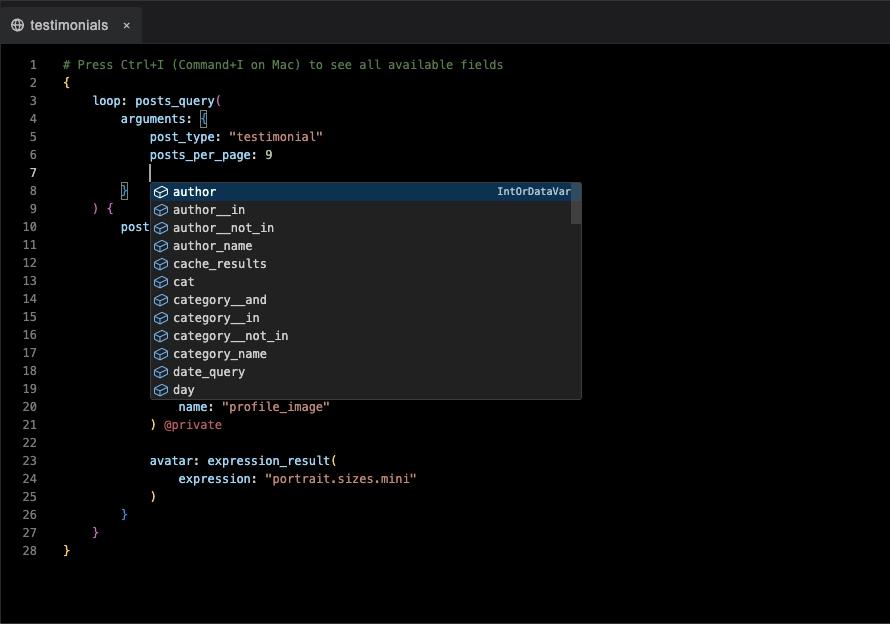
The main editor area provides a full-featured GraphQL writing environment:
Features
- Syntax Highlighting: GraphQL keywords, functions, and structure are color-coded
- Auto-completion: Type to see available fields and functions
- Error Detection: Real-time validation shows syntax errors
- Indentation: Automatic formatting for readable query structure
Writing Queries
Start typing your GraphQL query in the editor. Use the schema knowledge from previous articles to structure your queries with proper arguments and field selection.
Snippets Panel
Pre-built snippets provide working query templates you can modify:
Available Snippets
- Related Posts: Find posts sharing categories or tags
- Upcoming Events: Filter posts by future dates
- Team Directory: User queries with custom fields
- Featured Content: Custom field filtering examples
Using Snippets
- Click "Snippets" button to open the panel
- Browse available snippets
- Click a snippet to insert it into your editor
- Paste in the editor and modify

Data Preview and Testing
Test your queries before using them in templates:
Get Data Button
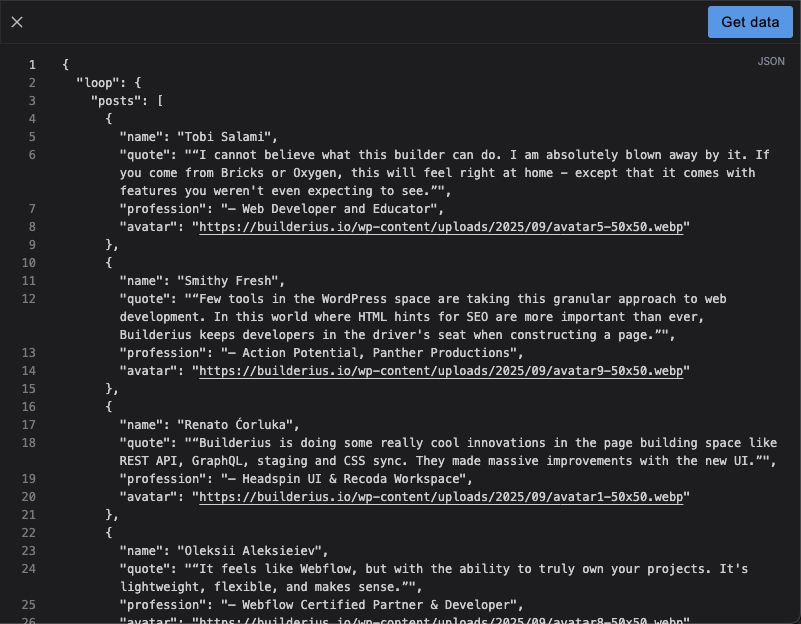
Click "Get Data" to execute your query and see results in JSON format. This shows exactly what data your query returns.
JSON Preview Panel
The right panel displays query results in structured JSON, showing:
- Data structure and field names
- Actual values returned by your query
- Array structures for loop data
- Nested object relationships
Debugging Workflow
- Write or modify your GraphQL query
- Click "Get Data" to test
- Review JSON output for expected data
- Adjust query if needed and test again
- Use working query in your templates
Variable Tabs and Management
Tab Navigation
Switch between multiple data variables using tabs at the top of the variable list.
Variable Actions
- Rename: Update variable names as your project evolves
- Delete: Remove unused variables
- Move to Template/Global: Move the variable to desired scope
Workflow Best Practices
Development Process
- Plan First: Identify what data you need before writing queries
- Start Simple: Begin with basic queries and add complexity gradually
- Test Frequently: Use "Get Data" after each significant change
- Name Clearly: Use descriptive variable names for easy reference
- Organize Logically: Group related queries in the same variables
Performance Tips
- Select Specific Fields: Only query fields you'll actually use
- Use Arguments: Filter data at the database level
- Monitor Query Complexity: Avoid overly complex nested relationships
Common Issues
- Syntax Errors: Check brackets, commas, and quotation marks
- Invalid Fields: Ensure field names match available schema
- Missing Arguments: Some functions require specific parameters
- Context Problems: Verify data variables reference correct scope
Integration with Templates
Once your query works in the GraphQL editor:
- Bind to Elements: Your variable appears in the dynamic data dropdown
- Collection Elements: Use query results with loops for dynamic content
- Template Context: Access query data throughout your template
The GraphQL Editor bridges the gap between complex data requirements and simple template implementation, giving you powerful querying capabilities with an intuitive interface.