Introduction
Styling in Builderius is real CSS. Every visual control writes a CSS property, and every CSS rule you write shows up in the visual controls. Nothing is hidden, and nothing is locked to the builder.
Four ideas make up the whole system:
- UI and Code mode - two ways to edit the same styles, always in sync
- Scopes - styles live in Global, Template or Component, and load only where they belong
- Selectors - style with any selector, not only classes
- CSS Variables - reusable values for colors, sizes, spacing and anything else
On top of that, Breakpoints let you change any style for different screen sizes.
Where Styling Happens
Select an element and the Styles tab opens in the left sidebar. This is where most of the work happens.
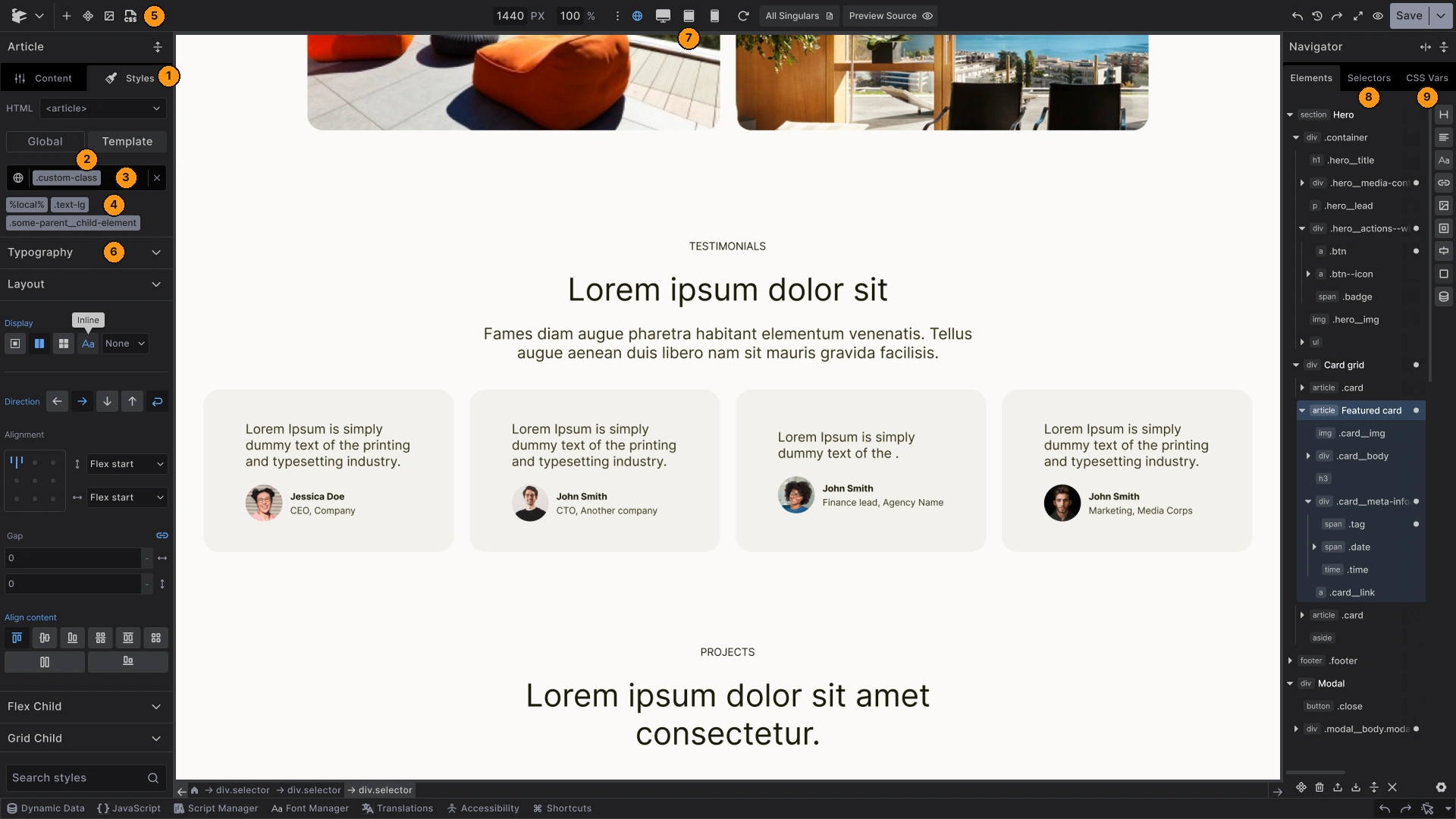
- Styles tab - opens by default when you select an element. Hold Alt (Option on Mac) while clicking an element to open Content instead
- Scope switch - choose whether you are working in Global or in Template (or Component)
- Selector input - shows the one selector you are styling right now.
%local%means "this element only" - Selector chips - the other selectors that affect this element. Click one to style it instead
- Code toggle - in the top bar. Switches the sidebar from these visual controls to CSS code
- Style sections - the visual controls, grouped into Typography, Layout, Sizing, Spacing and more
- Breakpoints - in the top bar. Switch screen size, and the styles you add apply from that breakpoint
- Selectors panel - every selector on your site, in the Navigator
- CSS Vars panel - every CSS variable, in the Navigator
How a Style Is Made
Every style you add answers three questions:
- What does it apply to? The selector in the selector input
- Where does it live? The scope you are in
- When does it apply? The breakpoint you are on (global/base breakpoint applies always)
Set those three, most often in one go, then change a control or write a line of CSS. That is all there is to it.
Best Way to Start
Do I have to style everything from scratch?
You can, but you do not have to. Builderius comes with two ready-made starting points, installed from Quick Starters:
- Minimal Starter - a simple base. One short stylesheet with sensible defaults for typography, spacing, forms and buttons, and a small set of variables and classes. Use it when you want to write most of the styling yourself, or when you build with AI
- Builderius CSS Framework (BCSS) - a fuller styling solution. A complete framework with design tokens, color scales, dark mode and utility classes. It comes with the Starter with Framework. See the BCSS documentation on GitHub
Both are ordinary CSS in your Global scope. You can read every rule, change it, or remove it.
Bring your own CSS
You are not tied to either of them. CSS from elsewhere works here as well: a framework you already use, a stylesheet from an earlier project, or a design system your team maintains. Core Framework is one example of a CSS framework you can bring along.
There are two ways to add it:
- Paste it into All CSS in the Global scope, in Code mode. Its classes and variables then show up in the selector input and the CSS Vars panel like any others
- Load it as a file with the Script Manager, as a CSS library
If you bring a complete framework, start from the Minimal Starter or from no starter at all, so two frameworks do not compete.
Building on top
Whichever base you pick, or none at all, the same approach works:
- Put site-wide choices in Global: fonts, colors and spacing as CSS variables, and base styles for headings, links and buttons
- Create classes for things you reuse, like
.cardor.btn - Use
%local%for one-off adjustments on a single element - Use Template or Component scope for styles only one design needs
Next steps: