Conditions overview
Conditional display lets you show or hide elements based on dynamic data conditions. Instead of always displaying content, you can make elements appear only when specific criteria are met - like showing author bios only on blog posts, or displaying "Sale!" badges only for discounted products.
What is Conditional Display?
Static visibility means an element always shows or never shows.
Conditional visibility means an element shows based on rules you define using dynamic data.
Conditional visibility is NOT visualy hiding elements: Conditional display is a backend method of hiding elements.
This is NOT done with CSS (for example by adding display: none; ). Conditionaly hidden elements do not appear in your page HTML at all.
Real-World Examples
Singular Template:
- Show author bio only on posts (not pages)
- Display "Updated" badge only when post was recently modified
- Hide featured image section when no image is set
Archive Pages:
- Show search results count only on search pages
- Display category description only when description exists
- Show message "Not results found" when search results return 0 results.
How to Set Up Conditions
Conditional display is available on every Builderius element that is not in a looping context, through the Condition panel. For Template element used in Collections (loops) this visual conditions builder does not yet work. To render items conditionaly insde the loop use Expressions
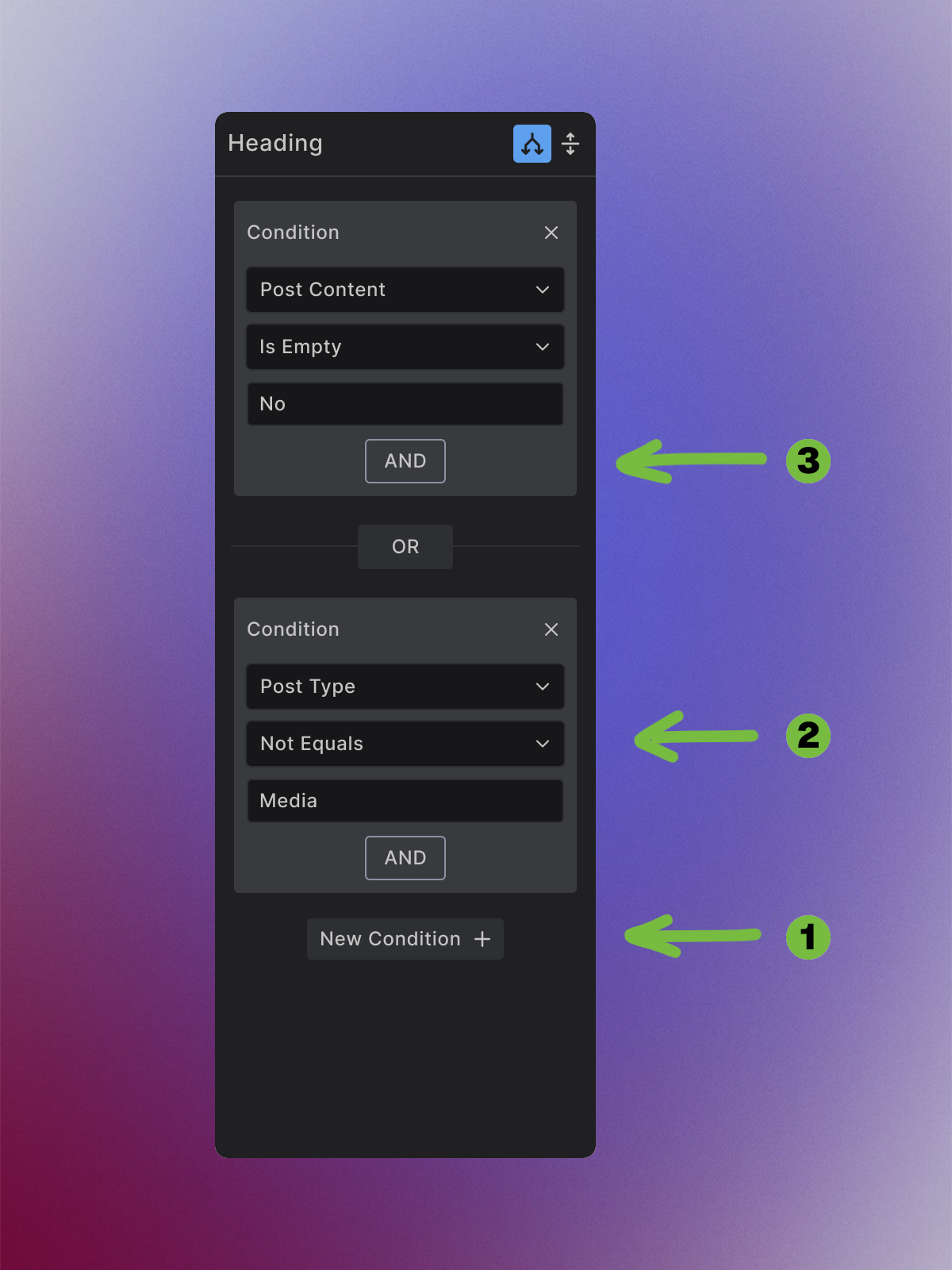
Basic Setup Process
1. Add Your First Condition
- Click "New Condition" ① to create your first rule
- Select the data source to evaluate (like Post Type, Custom Field, etc.)
- Choose the comparison operator ② (Equals, Not Equals, Is Empty, etc.)
- Set the comparison value
2. Configure Multiple Conditions
- Use "AND" ③ when all conditions must be true
- Use "New contition" when any condition can be true (this creates the OR operator)
- Add more conditions as needed for complex logic
3. Test Your Logic
- Preview your template to see conditional display in action
- Check different page types and content scenarios
Logic Operators
AND Logic - All conditions must be true:
Post type = Post AND Featured Image Is Not Empty
→ Shows only on blog posts that have featured images
OR Logic - Any condition can be true:
Post Type = Event OR Category = Announcements
→ Shows on product posts OR any post in shop category
Complex Logic - Mix AND/OR for advanced rules:
Post Type = Event AND Event Date > Today OR Featured = Yes
→ Shows on future events OR any featured content
Types of Condition Settings
Simple Built-in Conditions
There is a number of built in conditions that you can use in a straight forward way to set simle or compound condition on. For example:
- Test if there is a Featured Image Set
- Test if there is more or less then 23 terms in categories
- Test if post is newer (posted at) then certain date


Dynamic Data Conditions
For non built in or more complex conditions use Dynamic Data option that allows you to base the conditions on non-standard WordPress fields.


Expression Based Conditions
Use Buidlerius expressions to create conidions in a text first format. Expressions are a powerfull and concise syntax you can use to evaluate against in your conditions. Here are some examples to give you an idea.

# Show "Long Title" warning when title exceeds 50 characters
count(post_title) > 50

# Show "Weekend Post" badge for Saturday posts :
includes(date('l', strtotime(post_date)), 'Saturday')

# Display "Premium Product" label for expensive items
floatval(price) > 100
This article is about fundamentals of conditions. For detailed expressions syntax and examples, see Expressions documentation →
Practical Examples
- Blog Post Elements
- Archive Displays
- User-Specific Content
Author Bio Section:
- Condition: Post Type = "Post"
- Result: Author bio only appears on blog posts, not pages
Updated Badge:
- Condition: Post Modified Date > Post Date + 7 days
- Result: Shows "Updated" badge for posts modified more than a week after publication
Featured Post Banner:
- Condition: Featured Post (Custom Field) = "Yes"
- Result: Shows special styling/banner only on featured content
Search Results Count:
- Condition: Archive Type = "Search"
- Result: Shows "X results found for..." only on search pages
Category Description:
- Condition: Archive Type = "Category" AND Archive Description Is Not Empty
- Result: Displays category description only when one exists
No Results Message:
- Condition: Posts Count = 0
- Result: Shows "No posts found" message when archive is empty
Admin Tools:
Member Content:
- Condition: User Is Logged In = Yes AND User Role = "Member"
- Result: Displays premium content only for logged-in members
Profile Completion:
- Condition: User Bio Is Empty OR User Avatar Is Empty
- Result: Shows "Complete your profile" prompt for incomplete profiles
Best Practices
Start Simple:
- Begin with single conditions before building complex logic
- Test each condition thoroughly before adding more
Performance Considerations:
- Avoid overly complex condition chains
- Use the most efficient conditions (simple field checks vs complex calculations)
User Experience:
- Provide fallbacks for hidden content when appropriate
- Consider what happens when conditions change dynamically
What's Next
Now that you understand conditional display, explore:
- Built-in Data Sources → - Specific fields you can use in conditions
- Collection Setup → - Conditional display in repeating content