Install on a Mac
Sense runs on your local machine and connects to the Builderius builder. This guide covers the full first-time setup. Steps 1 through 3 only need to be done once per machine. Future WordPress projects only require enabling Sense in Builderius settings and starting the server in the builder.
Step 1: Install Node.js
- Open Terminal
- Run each line one at a time:
curl -o- https://raw.githubusercontent.com/nvm-sh/nvm/v0.40.1/install.sh | bash
source ~/.zshrc
nvm install --lts
- Verify it worked:
node -v
It should return a version number.
Step 2: Install Claude Code
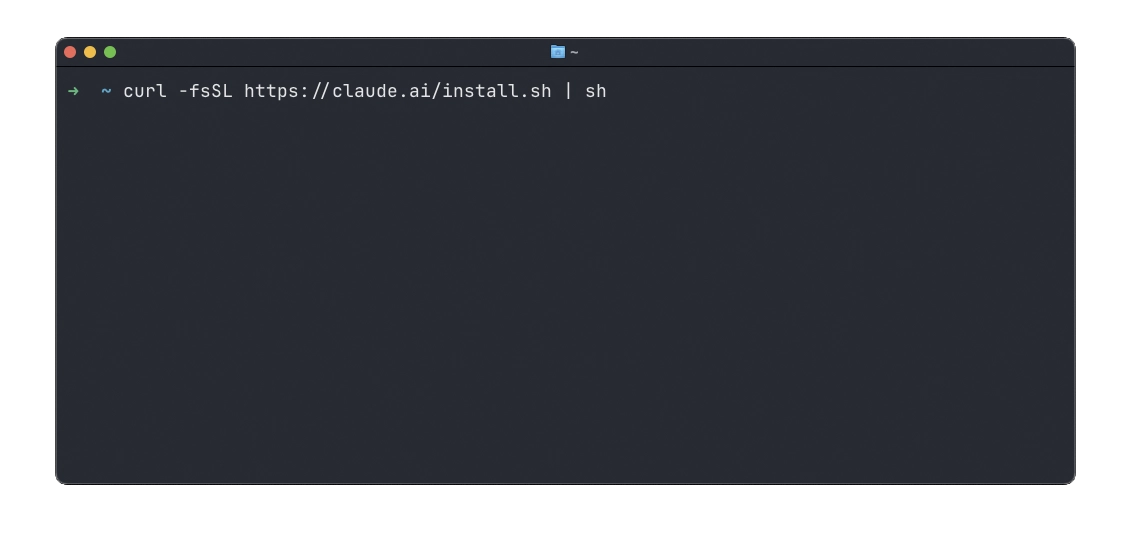
- In Terminal, run:
curl -fsSL https://claude.ai/install.sh | sh
- Authenticate with your Claude account:
claude login
Follow the prompts to log in. This connects Claude Code to your account and API key.
Step 3: Install Sense AI
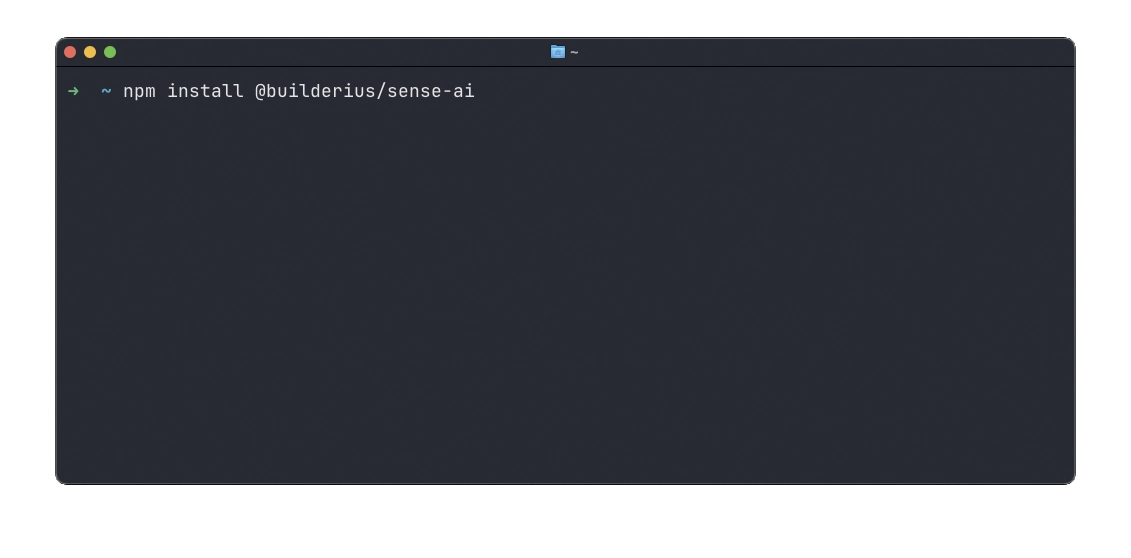
In Terminal, run:
npm install @builderius/sense-ai
Steps 1 through 3 are done once per machine. You do not need to repeat them for each WordPress project.
Step 4: Enable Sense in WordPress
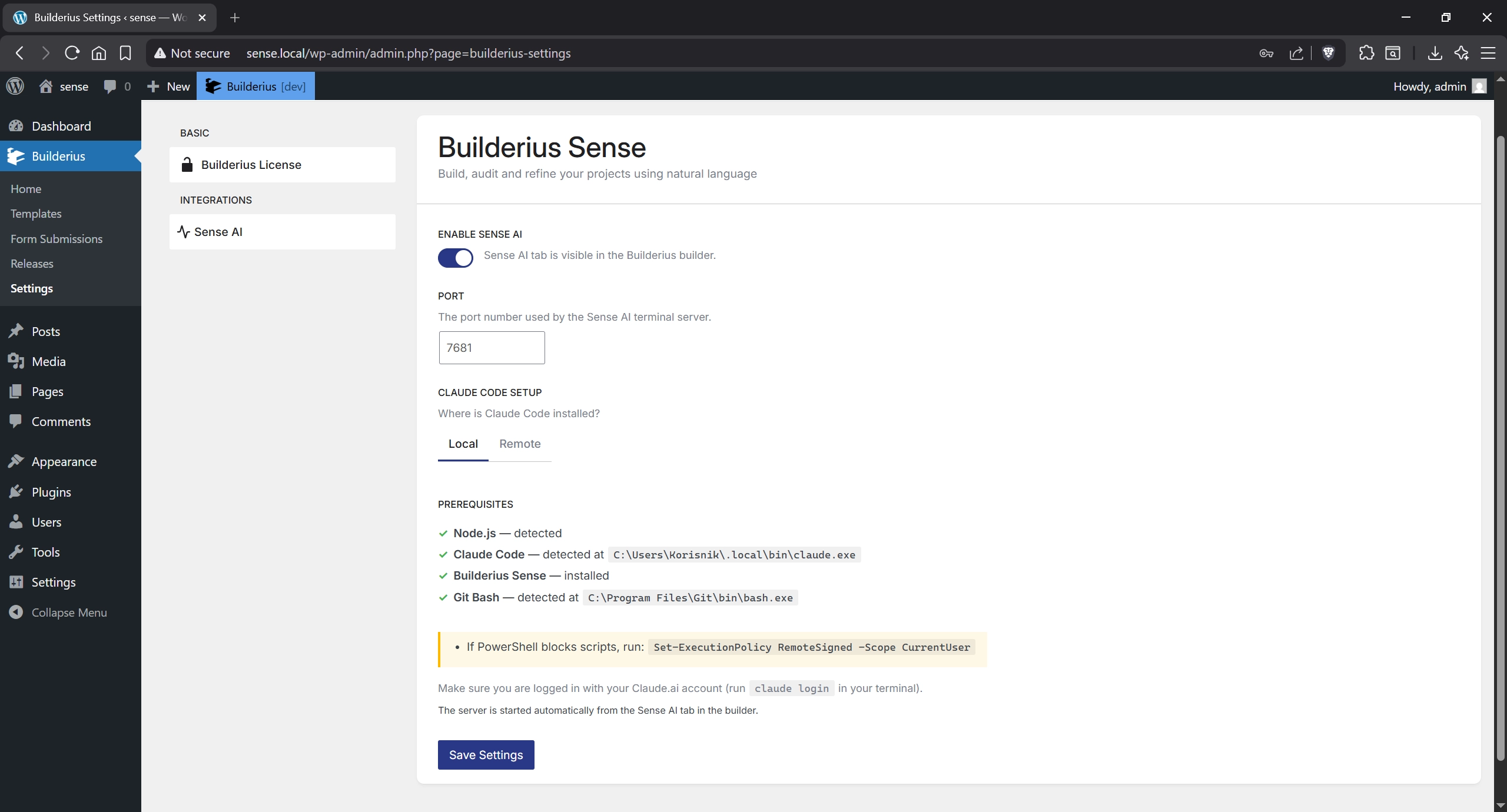
- In WordPress admin, go to Builderius → Settings → Sense AI
- Toggle Enable Sense AI on
- Check that the Prerequisites section shows green checkmarks
- Click Save Settings
Step 5: Start Sense in the Builder
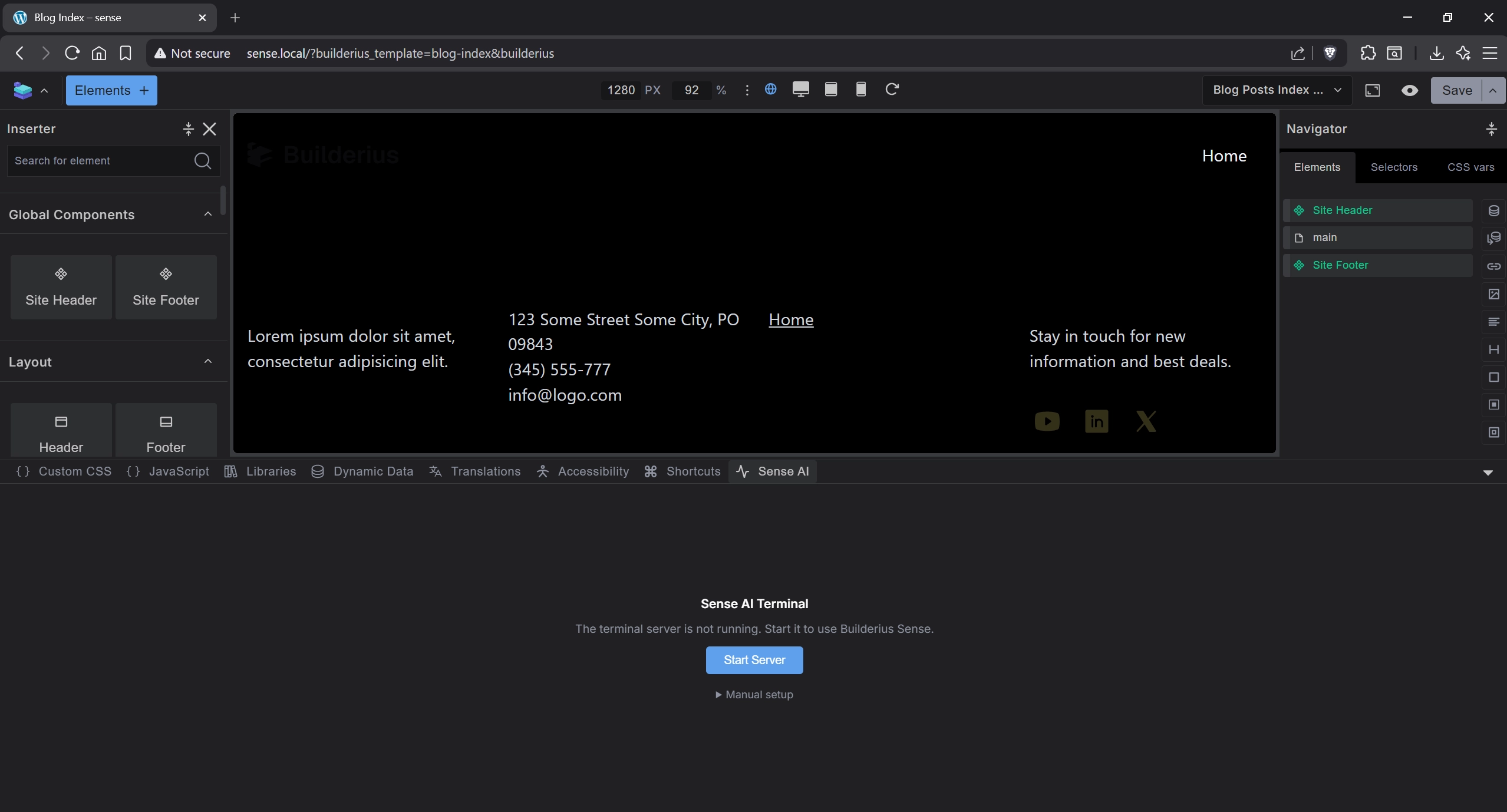
- Open your site in the Builderius builder
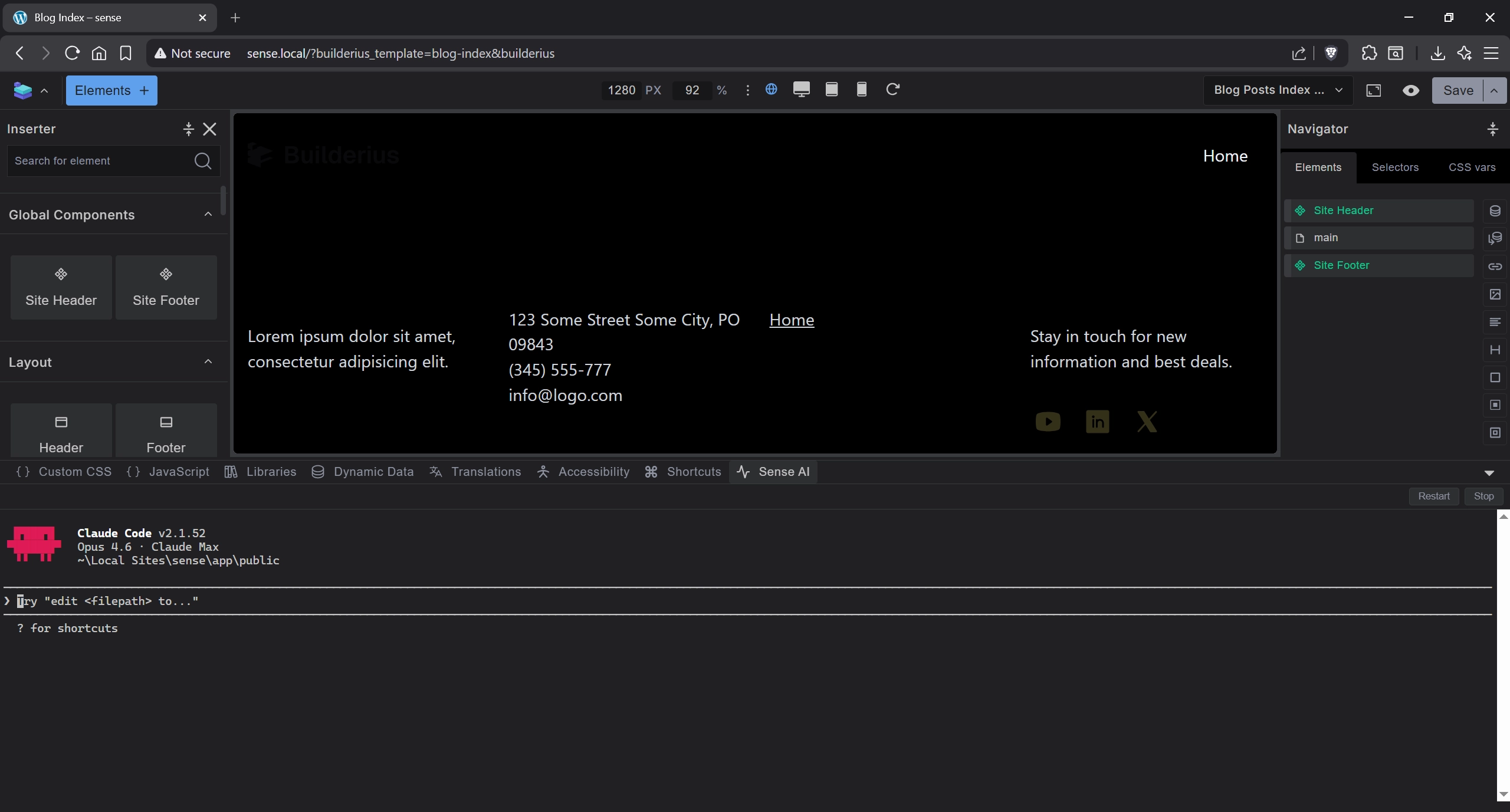
- Click the Sense AI tab in the bottom toolbar
- Click Start Server
Claude Code will connect and display its version and working directory.
Verify It Works
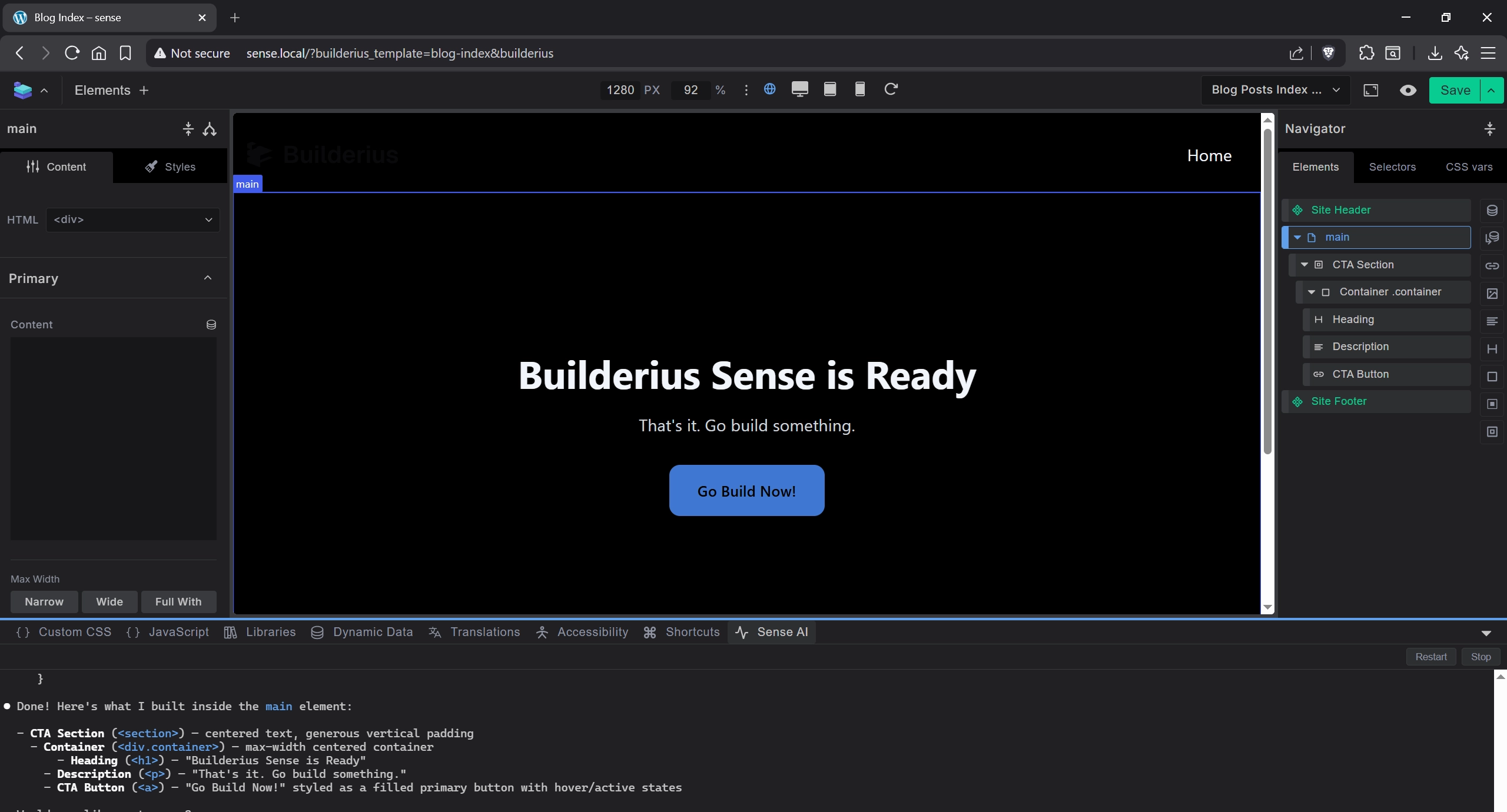
Select an element in the builder and give Sense an instruction. If it builds elements on the canvas and reports what it did, you are good to go.
For Future Projects
Once the machine setup is complete, each new WordPress project only needs:
- Install and activate Builderius on the site
- Builderius → Settings → Sense AI — toggle on and save
- Open the builder → Sense AI tab → Start Server
Troubleshooting
- "nvm: command not found" — Run
source ~/.zshrcor restart Terminal. - "node: command not found" — nvm did not install Node. Run
nvm install --ltsagain. - Claude Code fails to install — Make sure you are not running Terminal as root.
- Prerequisites show red in admin — One or more dependencies are not installed or not detected. Check that Node.js and Claude Code are accessible from Terminal.
- Start Server does nothing — Verify Claude Code is authenticated by running
claude loginin Terminal. Check that the port (default 7681) is not blocked.