Import HTML and JSON
The Import tool turns pasted code into real Builderius elements. Paste the HTML of a page or a section and it arrives on your canvas as regular elements, with its styles, scripts and fonts put where they belong in the builder. You can also paste Builderius JSON to move a design from one site to another.
The Import tool is available in Builderius Website, Professional and Studio. It is not included in Builderius Community (Free).
Opening the Import Tool
There are three ways to open it:
- Click the Import icon at the bottom of the Navigator
- Right-click an element and choose Import… to import into that element
- Press Ctrl + Alt + T (Cmd + Option + T on Mac)
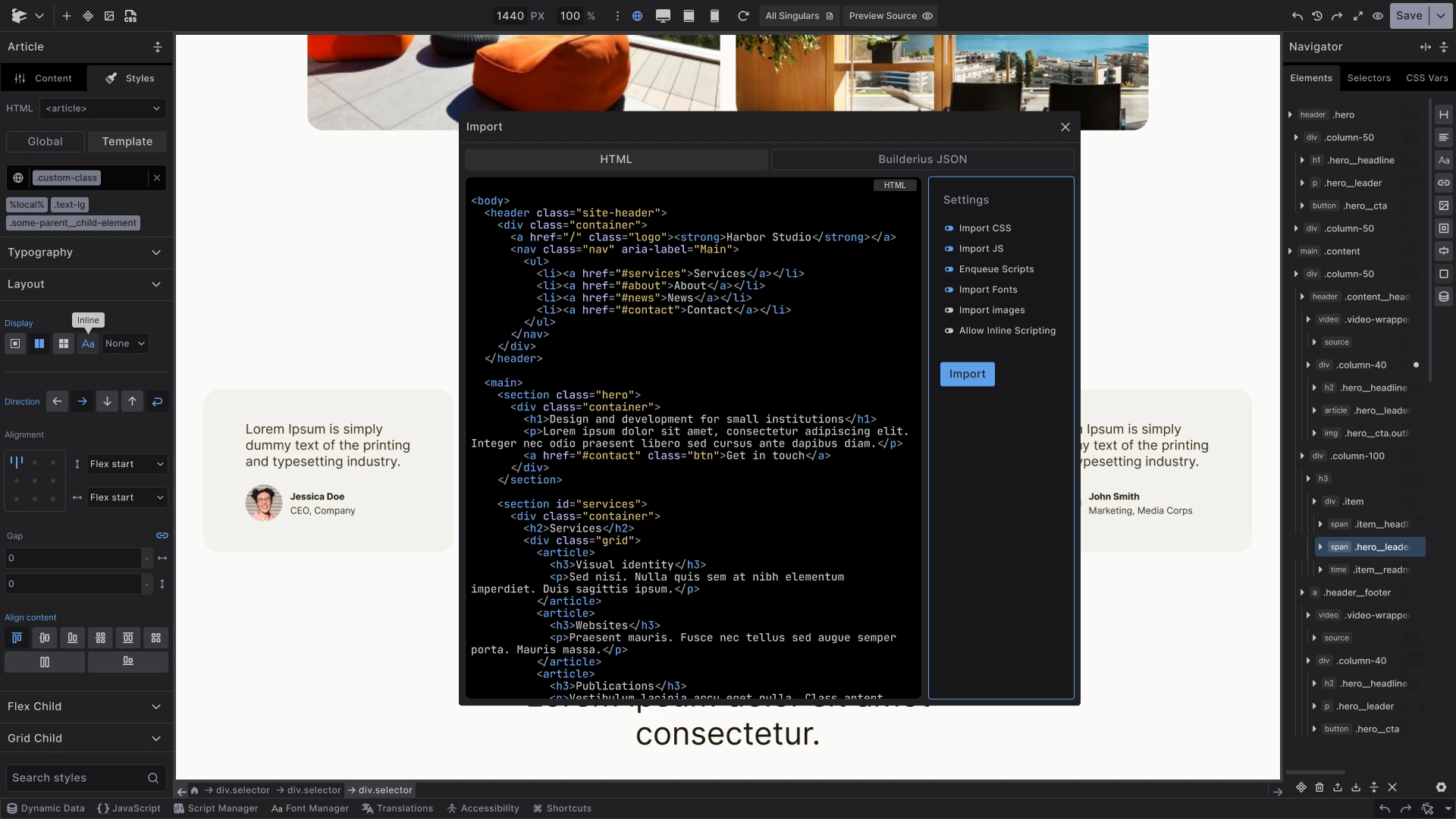
The Import window has four parts:
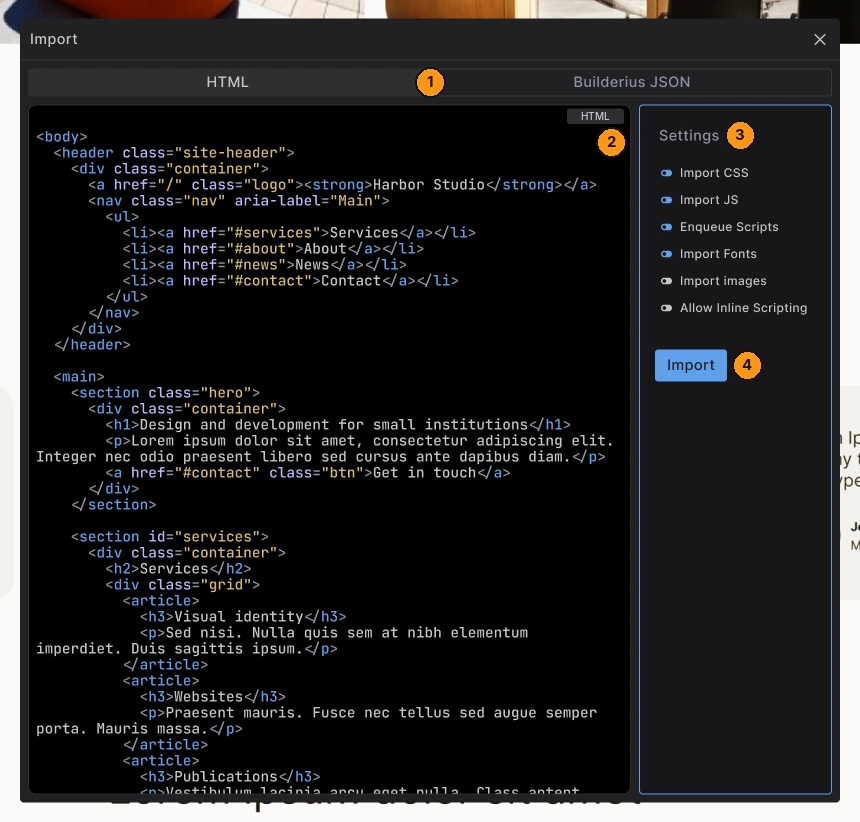
- HTML / Builderius JSON - choose what you are importing
- Code area - paste your code here
- Settings - choose what comes along with the markup
- Import - runs the import
Importing HTML
- Open the Import tool and stay on the HTML tab
- Paste your HTML into the code area. A full page with its
<style>and<script>tags works, and so does a single section - Check the Settings on the right
- Click Import
Your HTML becomes regular Builderius elements. Classes, ids and attributes are kept, so you can keep styling and editing them like anything else you build.
HTML Import Settings
Import CSS: On by default. Brings the styles from the page into your template.
Import JS: On by default. Brings the page's own scripts in as snippets. You find them in the JavaScript tab.
Enqueue Scripts: On by default. Script and stylesheet files the page links to become entries in the Script Manager.
Import Fonts: On by default. Fonts become entries in the Font Manager. A Google Fonts link becomes a font entry, and a font file the page hosts itself is copied onto your site. Fonts that fail keep their original URL and are reported.
Import Images: Off by default. Copies the page's images into your Media Library, so your page uses its own copies instead of loading them from the original site. Builderius asks you to confirm before it starts.
Allow Inline Scripting: Off by default. See Inline JavaScript below.
Importing Images
With Import Images on, the Import button shows the progress, for example Copying images 6/23…, and nothing is placed on the canvas until copying is done. A page with many images can take a while.
- Up to 300 images per import, 12 MB per file
- An image that cannot be downloaded keeps its original address, and the summary tells you which one and why
- Importing the same page again reuses the images that were already copied
Inline JavaScript
Inline JavaScript is blocked by default, because code inside pasted HTML could run with your admin permissions. With the switch off, Builderius removes things like onclick handlers and javascript: links, and tells you what it removed.
Turn on Allow Inline Scripting only for HTML you wrote yourself or trust. Builderius asks you to confirm. With it on, and with Import JS on as well, inline handlers are moved into snippets in the JavaScript tab, so the page behaves as before and you can see the code.
The switch turns itself off again after every import. That is on purpose: the safe setting is always the one you get without asking.
After the Import
When the import is done, Builderius shows a summary of everything it changed on the way in. Click Done to close it.
Typical things the summary reports:
- Removed scripts and handlers - inline JavaScript that was blocked
- Skipped SVGs - an SVG that contains a script is left out
- Sandboxed iframes - embedded frames get a safe default. If an embed needs downloads, modals, pointer lock or top-level navigation, add it to the iframe's
sandboxattribute - Dropped attributes - attributes from frameworks such as Alpine, Vue or htmx are not supported yet and are listed
- Media queries - ones that match your breakpoints are connected to them
- Language - if the HTML was written in another language or direction, the summary tells you where to set it
- Fonts and images - anything that could not be copied, with the reason
Nothing is hidden: if the import changed or left out something, it is in the summary.
Importing Builderius JSON
Use the Builderius JSON tab to bring in elements that were copied or exported from Builderius, for example from another site.
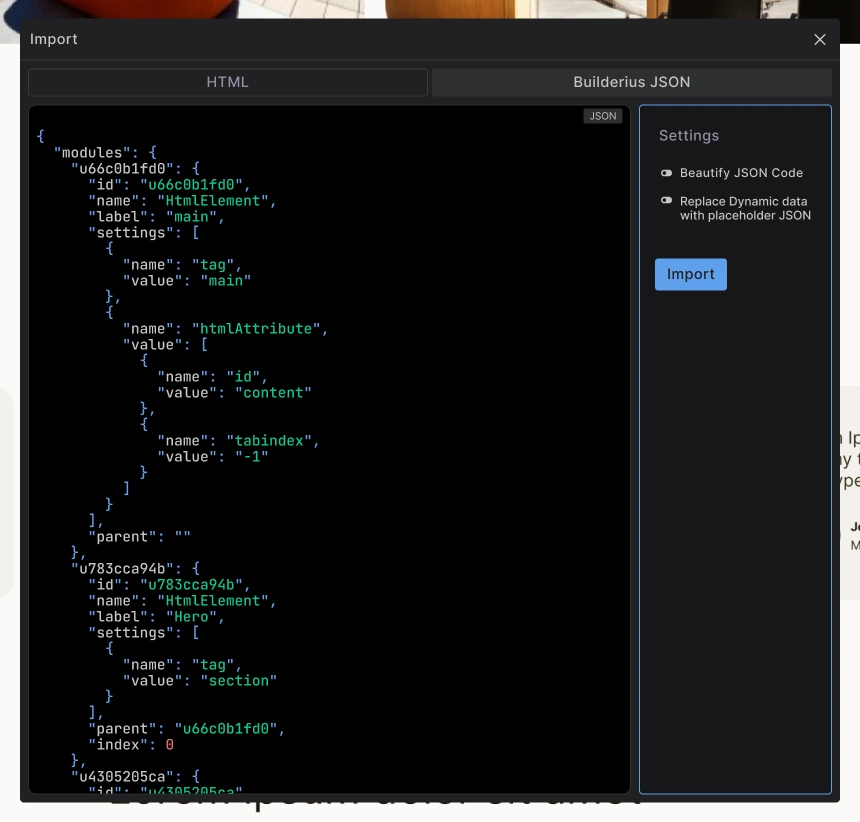
- Open the Import tool and switch to Builderius JSON
- Paste the JSON
- Click Import
Beautify JSON Code: Formats the pasted JSON so it is easier to read.
Replace Dynamic data with placeholder JSON: Swaps dynamic data for placeholder content, useful when the data sources do not exist on this site.
Best Practices
Import into an empty template or a wrapper element: Right-click an element and choose Import… to put the result exactly where you want it.
Start with a section: Importing one section at a time is easier to check than a whole page.
Leave Allow Inline Scripting off unless you know the code.
Turn on Import Images for anything you will publish: Images left on someone else's server can disappear.
Read the summary: It is the quickest way to see what needs your attention.
Common Issues
- "Couldn't read this HTML": Check that you pasted valid HTML
- "Nothing was imported": The summary lists why, for example the only element was a skipped SVG
- "This isn't Builderius JSON": Paste JSON that was copied or exported from Builderius
- Buttons or menus do not react: Their inline JavaScript was blocked. Import again with Allow Inline Scripting on, if you trust the code
- An Alpine, Vue or htmx page lost its behaviour: Framework attributes are not imported yet
- Images still load from the old site: Turn on Import Images, or check the summary for images that failed
- Images cannot be copied right now: Image copying waits while a release import or starter install is running
Next steps: