JavaScript
The JavaScript editor is where you write your own scripts in Builderius. Each script is a snippet with its own settings: you decide whether it is added inline or as a file, where on the page it goes, and how it loads. Snippets live in a scope, so a script loads only where it is needed.
The JavaScript editor is available in Builderius Website, Professional and Studio. It is not included in Builderius Community (Free).
To load an existing library, such as GSAP or jQuery, use the Script Manager → instead.
Opening the JavaScript Editor
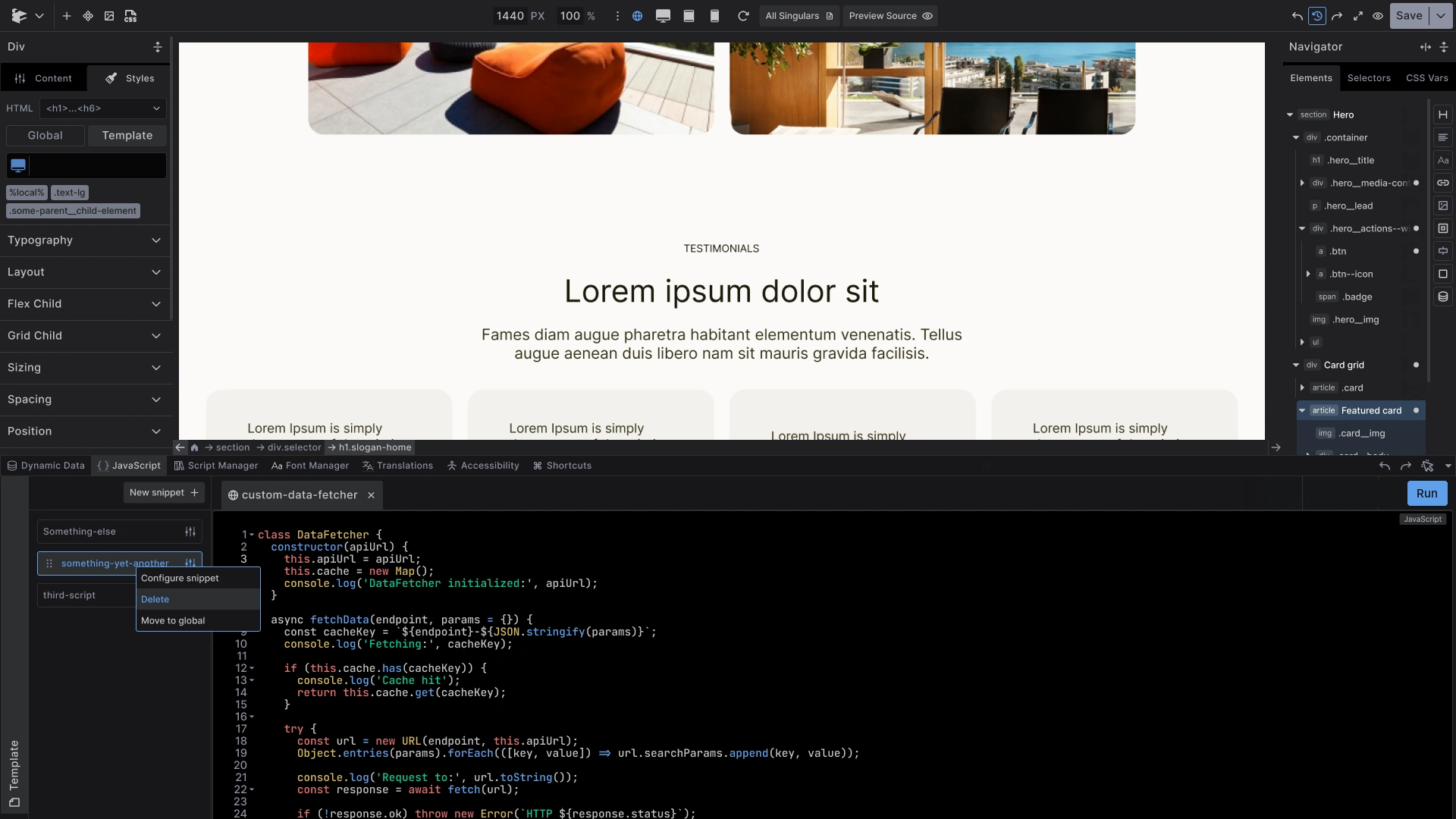
Open the JavaScript tab in the bottom panel of the builder.
The editor has seven main parts:
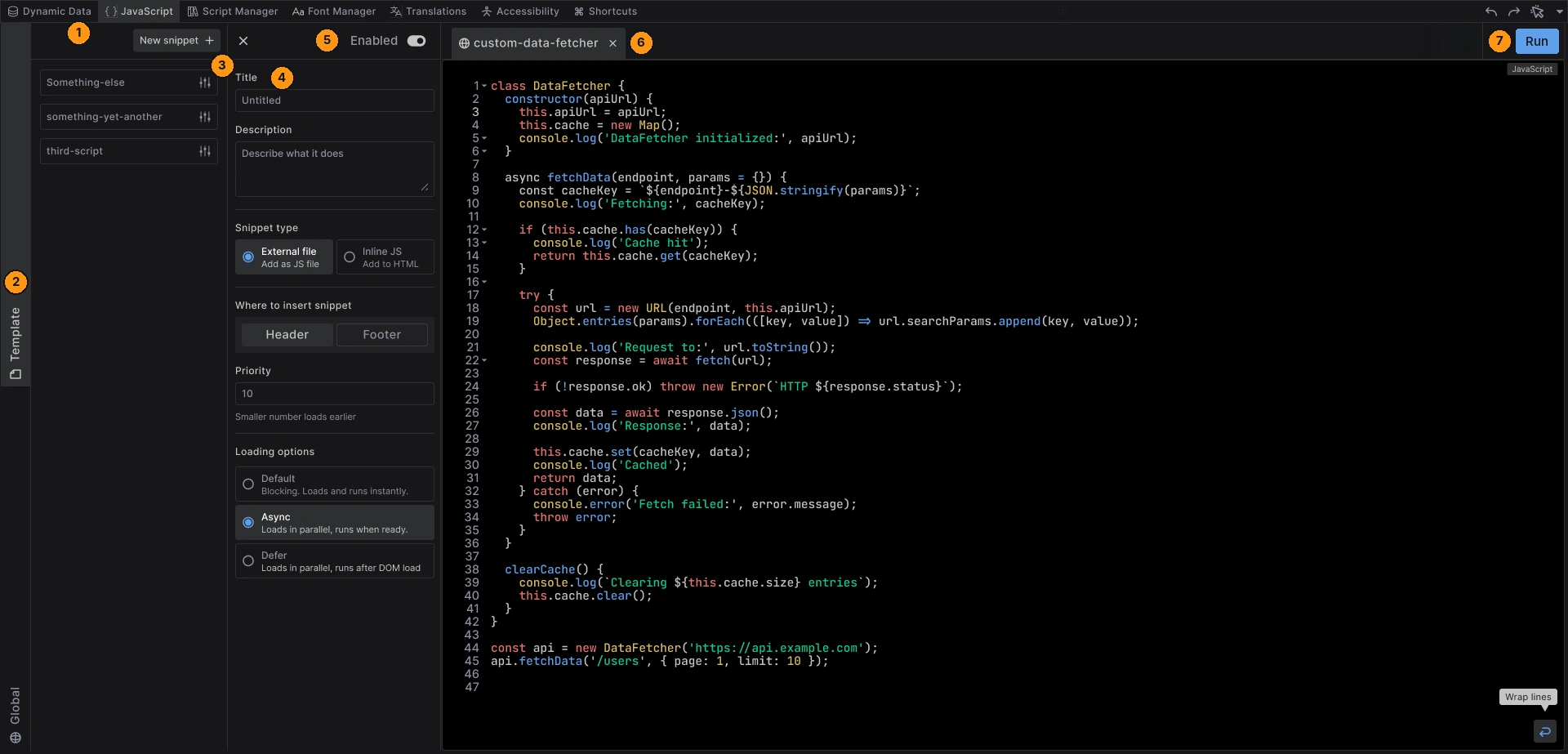
- JavaScript tab - opens the editor in the bottom panel
- Scope tabs - switch between Template (or Component) and Global
- Snippet list - the snippets in the active scope, with the New snippet + button above
- Snippet settings - title, description, type, placement, priority and loading
- Enabled switch - turns the selected snippet on or off
- Code editor - one tab per open snippet
- Run - makes your code active in the builder
Creating a Snippet
- Open the JavaScript tab
- Pick the scope on the left: Template or Global
- Click New snippet + and give it a name
- Write your code in the editor
- Adjust the snippet settings if the defaults do not fit
- Click Run to see it work in the canvas
Running Your Code
While you type, your code is inert: it does not run, so half-written JavaScript does not fill the console with errors.
Click Run when you are ready. That makes the snippet active in the canvas, so you can see it work on your page.
The Enabled switch turns a snippet off without deleting it. Like your code, the switch takes effect once you click Run.
Snippet Settings
Click the settings icon on a snippet, or choose Configure snippet from its menu, to open the settings column.
Title: A readable name for the snippet.
Description: A note for you and your team about what the snippet does.
Snippet type: How the code is added to the page.
- External file - added as a JS file. Best for larger scripts.
- Inline JS - added straight into the page HTML. Best for small scripts.
Where to insert:
- Header - at the top of the page, before the content
- Footer - at the bottom of the page, after the content
Priority: Sets the order between snippets. Smaller number loads earlier.
Loading options: Shown for External file snippets only. They disappear when you choose Inline JS.
- Default - blocking. Loads and runs instantly.
- Async - loads in parallel, runs when ready.
- Defer - loads in parallel, runs after the DOM has loaded.
Custom HTML attributes: Extra attributes on the <script> tag, as name and value pairs.
Scopes
The two vertical tabs on the left switch the scope. Which tabs you see depends on what you are editing:
- Editing a template or page: Template and Global
- Editing a component: Component and Global
A snippet loads when its scope runs:
- Global snippets load on every page
- Template snippets load only on pages that use that template
- Component snippets load only on pages where that component appears
So if a card component needs its own script, put the snippet in the component. It travels with the card and loads only where a card is on the page.
Changed your mind? Right-click a snippet and choose Move to global or Move to template to change its scope.
Managing Snippets
Right-click a snippet in the list, or use its menu icon:
- Rename item - change the snippet name
- Configure snippet - open the settings column
- Delete - remove the snippet
- Move to template / Move to global - change its scope
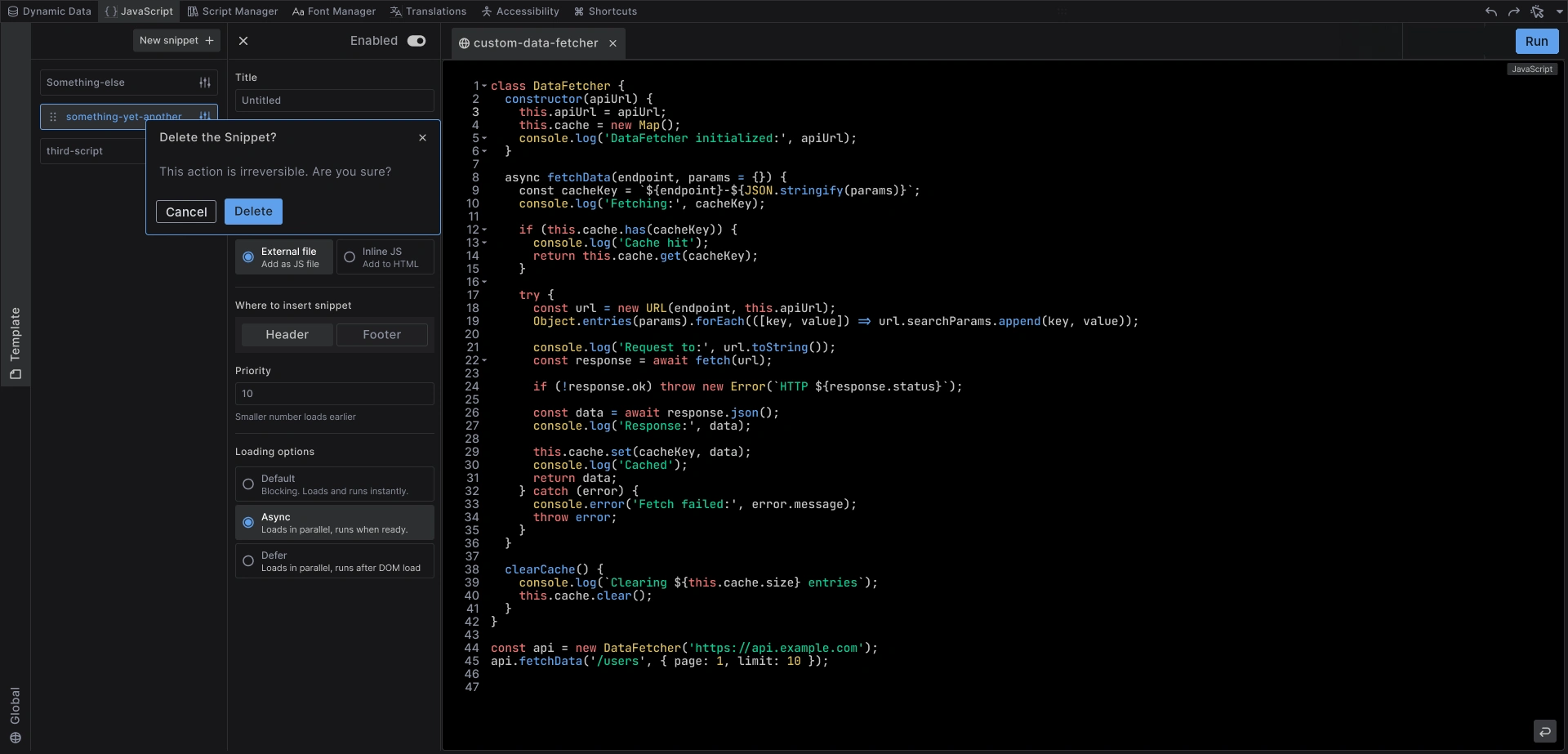
Deleting a snippet is irreversible, so Builderius asks you to confirm.
Best Practices
Scope it tightly: Keep a snippet in the template or component that needs it. Use Global only for code every page needs.
Prefer the footer: Footer snippets do not hold up the page. Use the header only when the code must run first.
Name snippets clearly: A good title and description save time when the list grows.
Common Issues
- Nothing happens in the canvas: Click Run, and check that the snippet is Enabled
- Works in the builder, not on the live site: Changes go live only after you publish a release. Learn about the publishing workflow →
- No Loading options: They are shown for External file snippets only
When to Use the JavaScript Editor
Use the JavaScript editor when you need:
- Your own code, kept in one place and scoped to a template or component
Use the Script Manager when you need:
- An existing library from a CDN, or a script WordPress already ships with
Use the HTML Code element when you need:
- A small script that belongs to one spot in the page, such as a third-party embed
Next steps: