Font Manager
The Font Manager is where you add web fonts to your site: font files you host yourself, or a remote stylesheet such as Google Fonts. Each font is an entry with its own settings, and Builderius writes the CSS that loads it.
The Font Manager is available in Builderius Website, Professional and Studio. It is not included in Builderius Community (Free).
Opening the Font Manager
Open the Font Manager tab in the bottom panel of the builder, next to Script Manager.
The Font Manager has seven main parts:
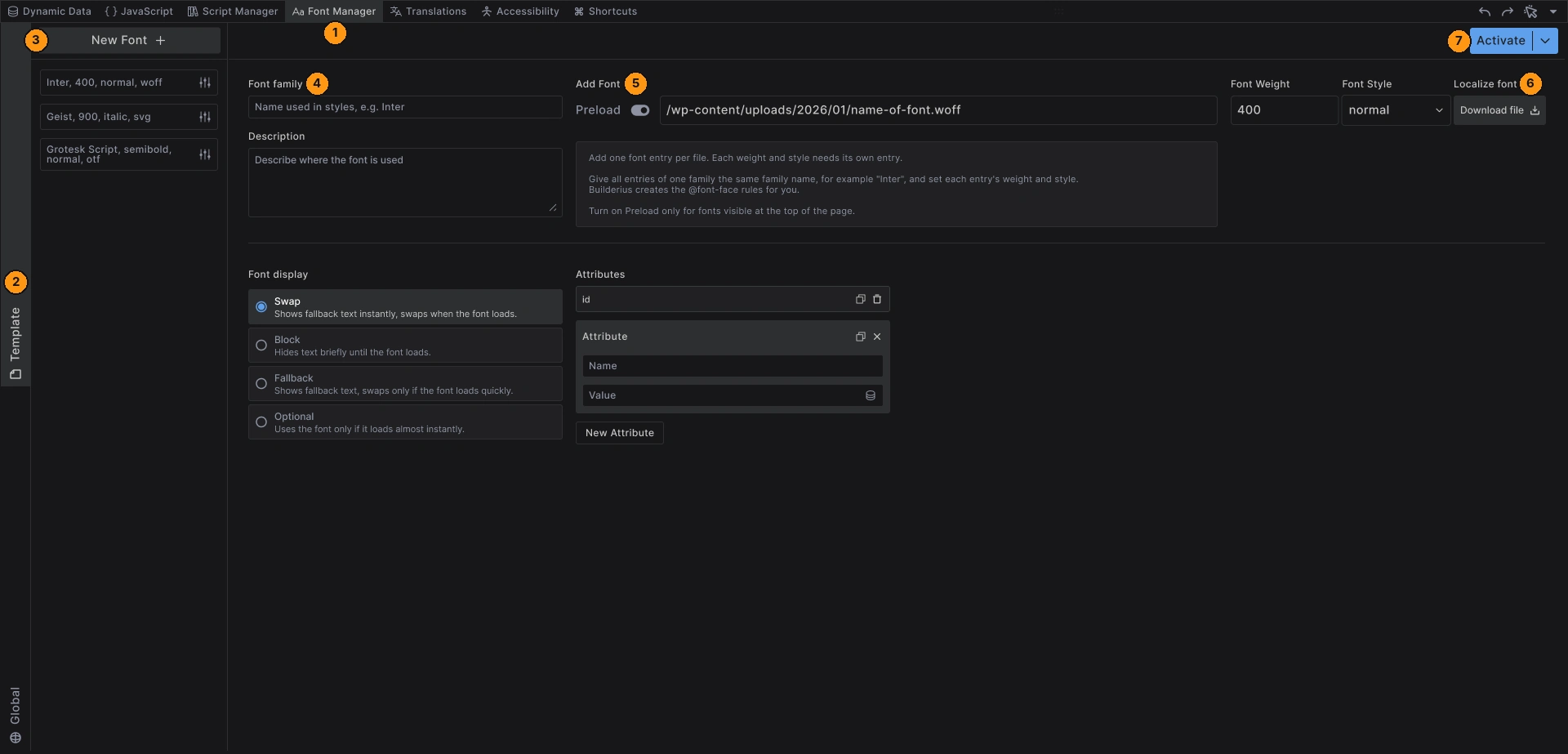
- Font Manager tab - opens the panel
- Scope tabs - switch between Template (or Component) and Global
- Font list - the fonts in the active scope, with the New Font + button above
- Settings form - everything about the selected font
- Add Font - the font URL, with the Preload or Preconnect switch
- Download file - copies a remote font file to your site
- Activate - turns the font on, with a dropdown for Duplicate and Delete
Two Ways to Add a Font
Font files - one file per weight and style, for example Inter-Regular.woff2. The font is served from your own site. This is the recommended way.
Remote stylesheet - one link from a provider such as Google Fonts. Quick to set up, but the font is loaded from the provider, which shares visitor data with them.
Adding a Font File
- Upload the font file to your WordPress Media Library and copy its URL
- Open the Font Manager tab and pick the scope: Template or Global
- Click New Font +
- Paste the URL under Add Font
- Type the Font family, for example
Inter - Set the Font Weight and Font Style for this file
- Repeat for every weight and style you need
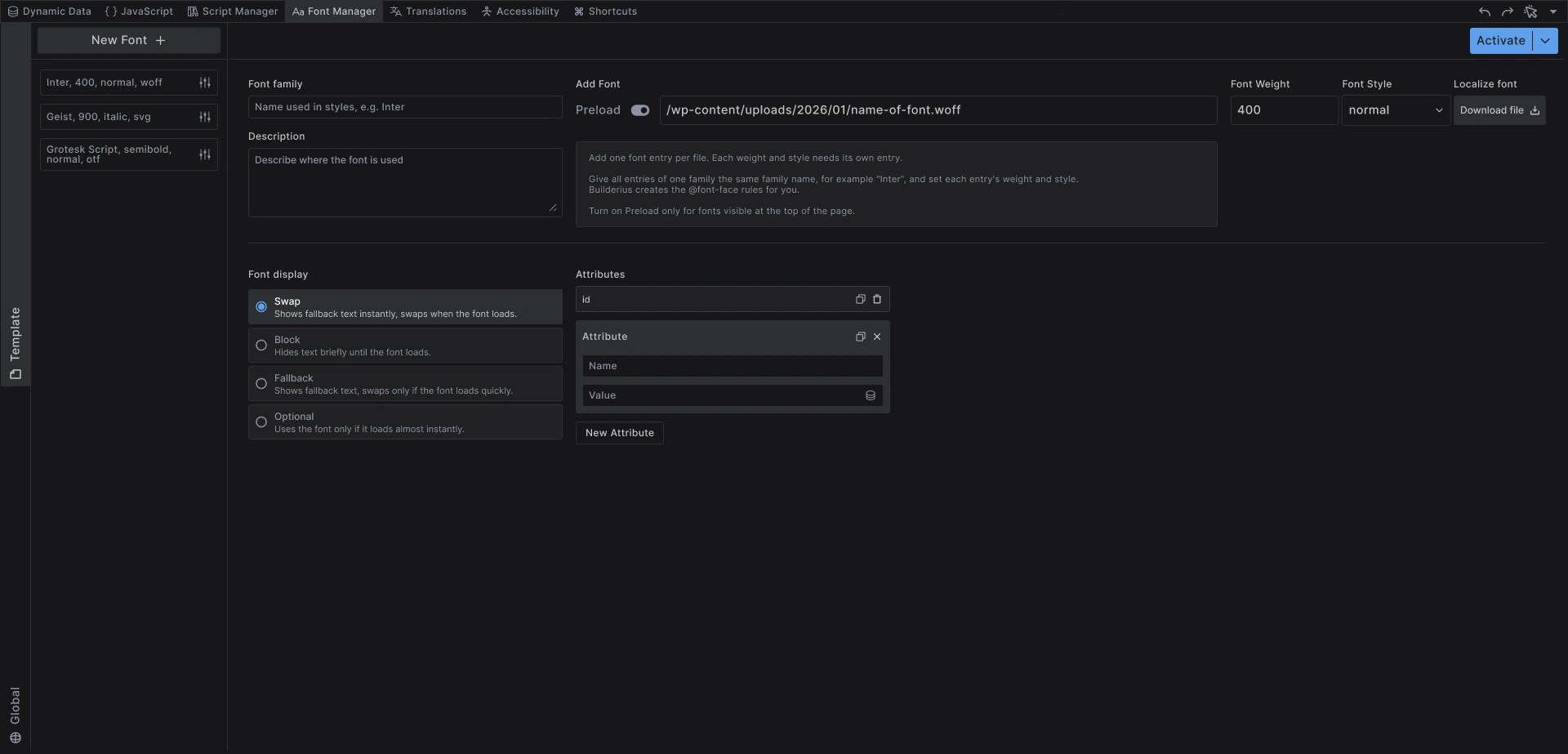
One entry per file. Each weight and style needs its own entry. Give all entries of one family the same family name and set each entry's weight and style. Builderius creates the @font-face rules for you.
In the list, each entry is named after its font: family, weight, style and format, for example Inter, 400, normal, woff2.
Supported formats are woff2, woff, ttf and otf.
Adding a Remote Stylesheet
- Click New Font +
- Paste the stylesheet URL under Add Font, for example a Google Fonts link
- Type the Font family the provider uses, for example
Roboto
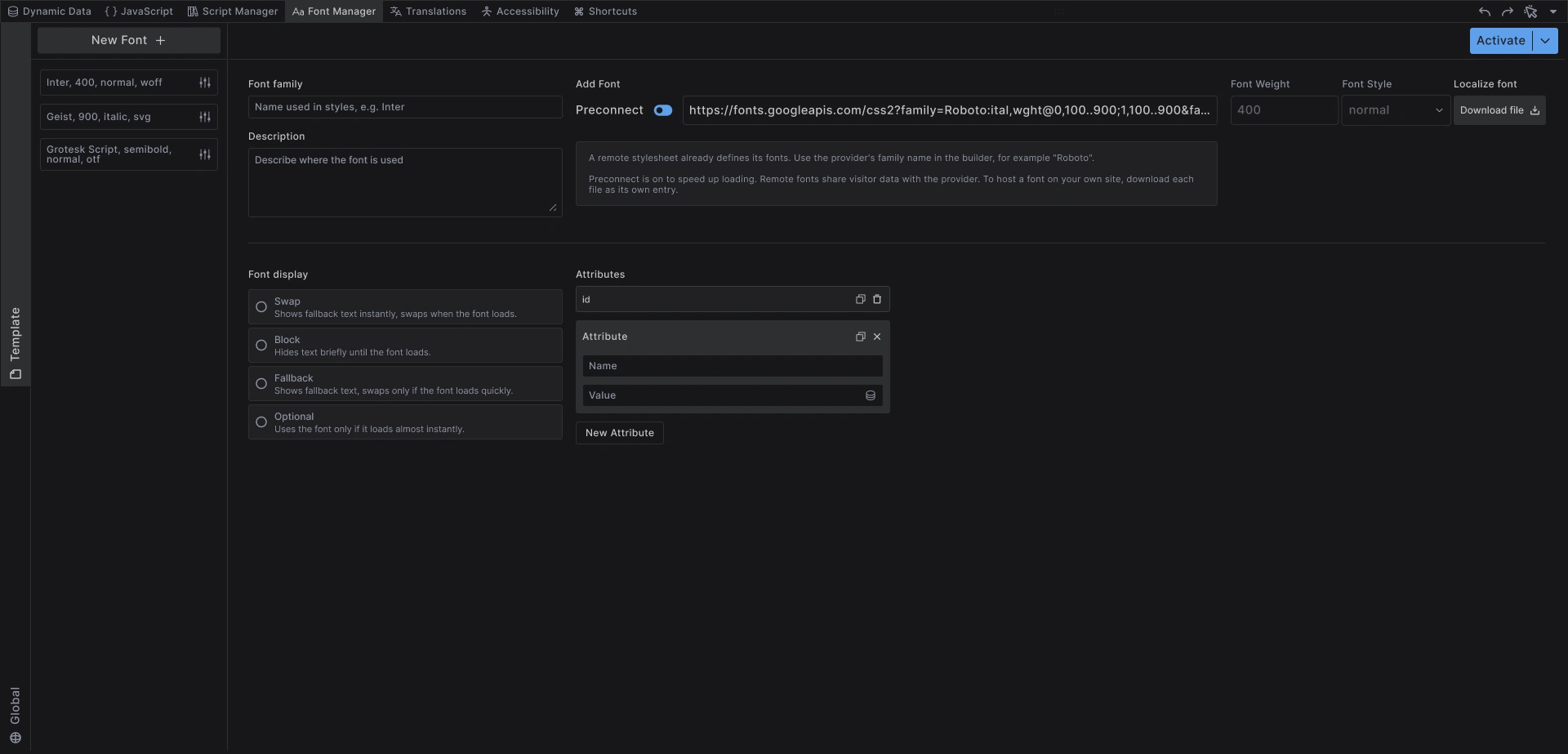
A remote stylesheet already defines its fonts, so there is nothing else to set up. When the link names a single weight and style, Builderius fills in the family, weight and style for you.
Remote fonts share visitor data with the provider. To avoid that, host the font files on your own site.
Using the Font
A font entry starts inactive. It turns on by itself when you paste the first URL, and you can switch it with Activate / Deactivate at any time.
To use the font, type its Font family name in your styles, exactly as you wrote it in the entry.
Font Settings
Font family: The name you use in your styles, for example Inter. All files of one family share this name.
Description: A note about where the font is used.
Add Font: The URL of a font file or a remote stylesheet.
Preload: Shown for font files. Off by default. Loads the font as early as possible. Turn it on only for fonts visible at the top of the page, usually your main text font.
Preconnect: Shown for remote stylesheets. On by default. Speeds up loading from the provider.
Font Weight: The weight of this file, for example 400 or 700.
Font Style: normal or italic.
Font display: What visitors see while the font is loading.
- Swap - shows fallback text instantly, swaps when the font loads. The default.
- Block - hides text briefly until the font loads.
- Fallback - shows fallback text, swaps only if the font loads quickly.
- Optional - uses the font only if it loads almost instantly.
Attributes: Extra attributes on the font's <link> tag. For a font file they go on the preload link, so turn on Preload to add them.
Hosting Fonts on Your Site
If your entry points to a font file on another site, click Download file. Builderius copies the file to your site and points the entry at the local copy.
Rules for the download:
- The URL must point to a single .woff2, .woff, .ttf or .otf file
- The file can be up to 10 MB
Google Fonts and other stylesheets cannot be downloaded this way: a stylesheet holds several font files, and Download works with one file at a time. To host a Google font yourself:
- Get the font files, for example with a helper such as google-webfonts-helper
- Upload them to your Media Library
- Add each file as its own entry
Scopes
The two vertical tabs on the left switch the scope. Which tabs you see depends on what you are editing:
- Editing a template or page: Template and Global
- Editing a component: Component and Global
A font loads when its scope runs:
- Global fonts load on every page
- Template fonts load only on pages that use that template
- Component fonts load only on pages where that component appears
Most sites keep their main fonts in Global. Use Template or Component for a font that only one design needs.
Managing Fonts
Activate / Deactivate: Turn a font on or off without losing its settings.
Duplicate: Creates a copy. Handy for adding the next weight of the same family.
Rename: Right-click the font and choose Rename.
Move to global / Move to template: Right-click the font to move it to the other scope.
Delete: Removes the font. Text styled with it falls back to the next font in its stack.
Best Practices
Host fonts yourself: Faster, and no visitor data goes to a third party.
Use woff2: It is the smallest format and works in all modern browsers.
Add only what you use: Every weight and style is another file to download.
Preload sparingly: One or two fonts at most. Preloading everything slows the page down.
Common Issues
- The font does not show: Check that the entry is activated, and that the family name in your styles matches the entry exactly
- Every weight looks the same: Each file needs its own entry, with the right Font Weight and Font Style
- Download file is disabled: The URL is a stylesheet, or the font is already on your site
- Download fails: The message says why, for example that there is no file at that address
- Works in the builder, not on the live site: Changes go live only after you publish a release. Learn about the publishing workflow →
Next steps: