Create templates
Builderius templates override your theme selectively. Unlike some builders that replace your entire theme, Builderius only overrides the specific templates you create. For example, if you create a Front Page template in Builderius, your theme's front page template is disabled and Builderius controls everything on that page - header, content, and footer. Your theme's other templates remain unchanged.
Templates overview
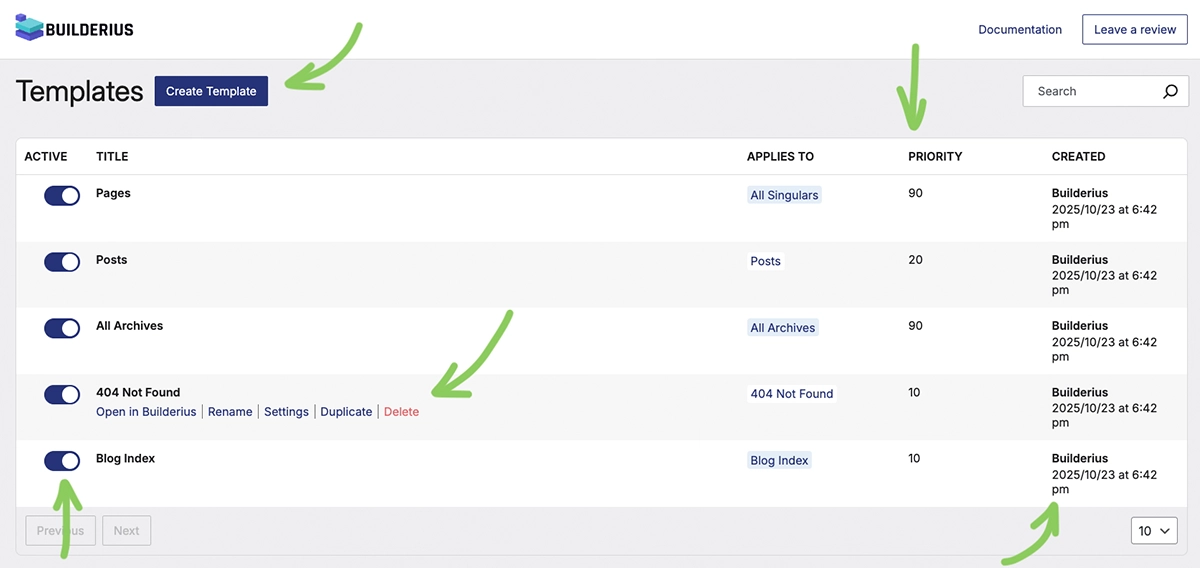
Manage all your templates from Builderius → Templates. The template list shows where each template applies, who created it and when, plus Priority control (lower numbers take precedence over higher numbers) that allows you set which template will take precedence on a given location if more than one are set to same location.
Template priority system
When multiple templates could apply to the same page, Builderius uses priority numbers to determine which template to use. Lower numbers win - a template with priority 10 will override one with priority 50.
Default priority numbers:
- Front Page, Blog Index, 404, Single CPT: 10 (highest priority)
- Single Post, Pages: 20
- Author Archive, Tag Archive, Category Archive, Search Results: 70
- All Singulars: 90
- Entire Website: 100 (lowest priority, fallback)
This hierarchy ensures specific templates override general ones. For example, a Single Post template (priority 20) will be used instead of an All Singulars template (priority 90) when displaying blog posts.
When you design a page or post directly (without applying a template), that individual design takes absolute priority and overrides any template, regardless of priority numbers. Learn more about designing pages directly →
Set a simple template location
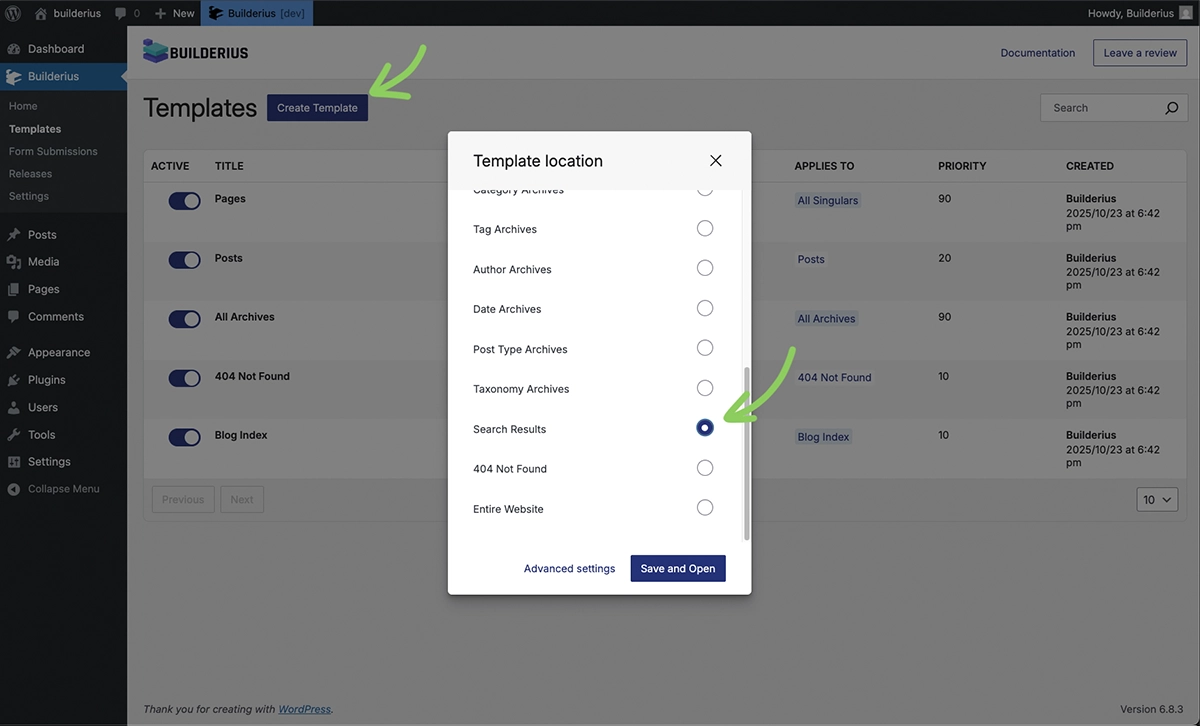
Builderius uses progressive disclosure - showing just what you need at each step. For straightforward locations like Homepage, 404 Page, or Contact Page:
- Click Create Template
- Select a clear location from the list
- Click Save and Open to start designing
You'll go directly into the builder environment to design your template.
Set an advanced template location Pro feature
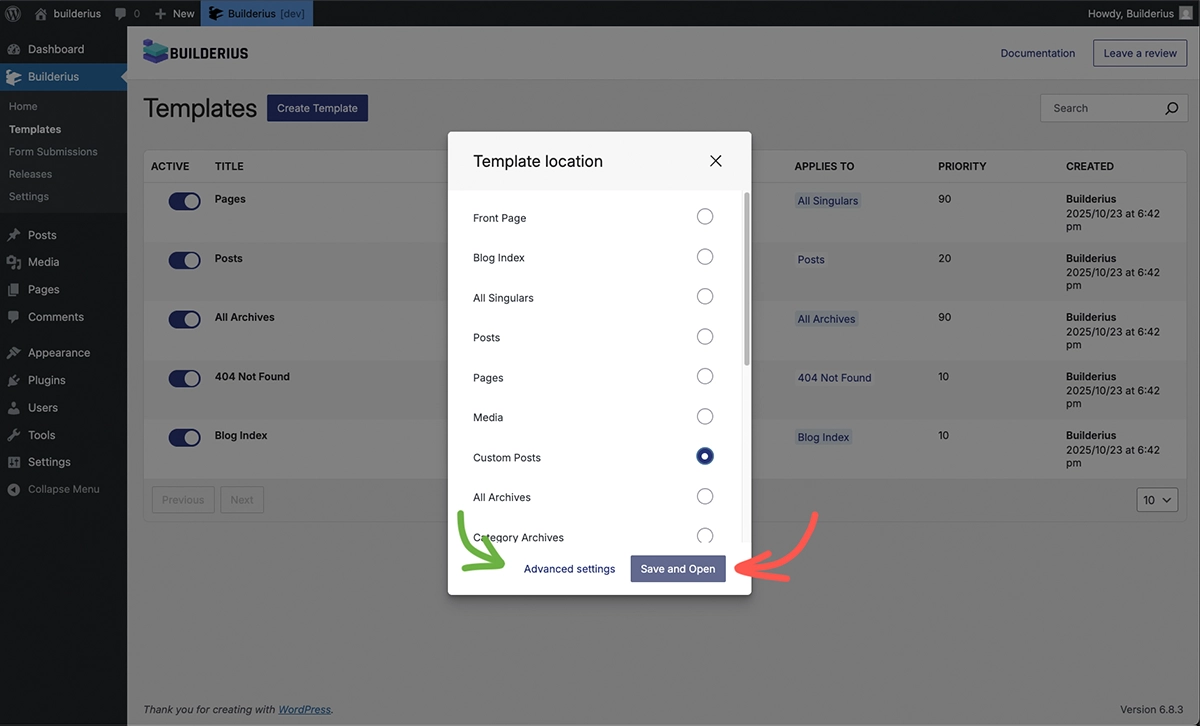
Some locations need more details - like which product categories, specific post types, or custom conditions. When you select these locations:
- Save and Open becomes disabled
- Advanced Settings is your only option forward
This ensures you configure exactly where the template should apply before building it.
Configure template conditions Pro feature
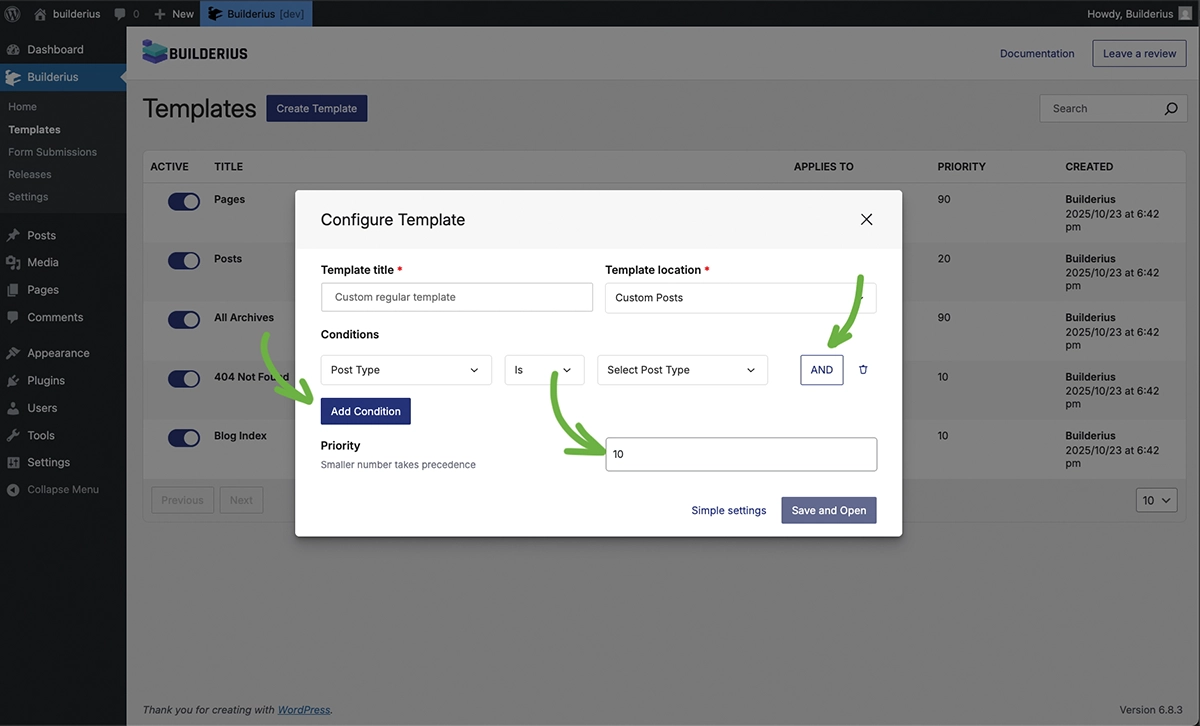
In the template settings modal, use the conditions builder to define exactly where your template applies. Set conditions as broadly or narrowly as needed - from Entire Website to posts in specific categories by certain authors, posted last week.
You can also adjust the priority number to control which template takes precedence when multiple templates match the same page. Lower numbers have higher priority.
Once configured, you'll enter the builder environment with your template properly scoped to the right locations and conditions.
This workflow reduces clicks and page loads while ensuring templates are set up correctly before you start designing. Simple cases stay simple, complex cases get the configuration they need.