Design a Single Page
Design individual pages or posts directly in Builderius when you need unique layouts that don't repeat on multiple pages. Direct page edits override all templates and have absolute priority.
Use direct page editing only for unique, one-off designs like custom homepages or special landing pages. For regular content, use templates to maintain consistency and efficiency.
Open a page in Builderius
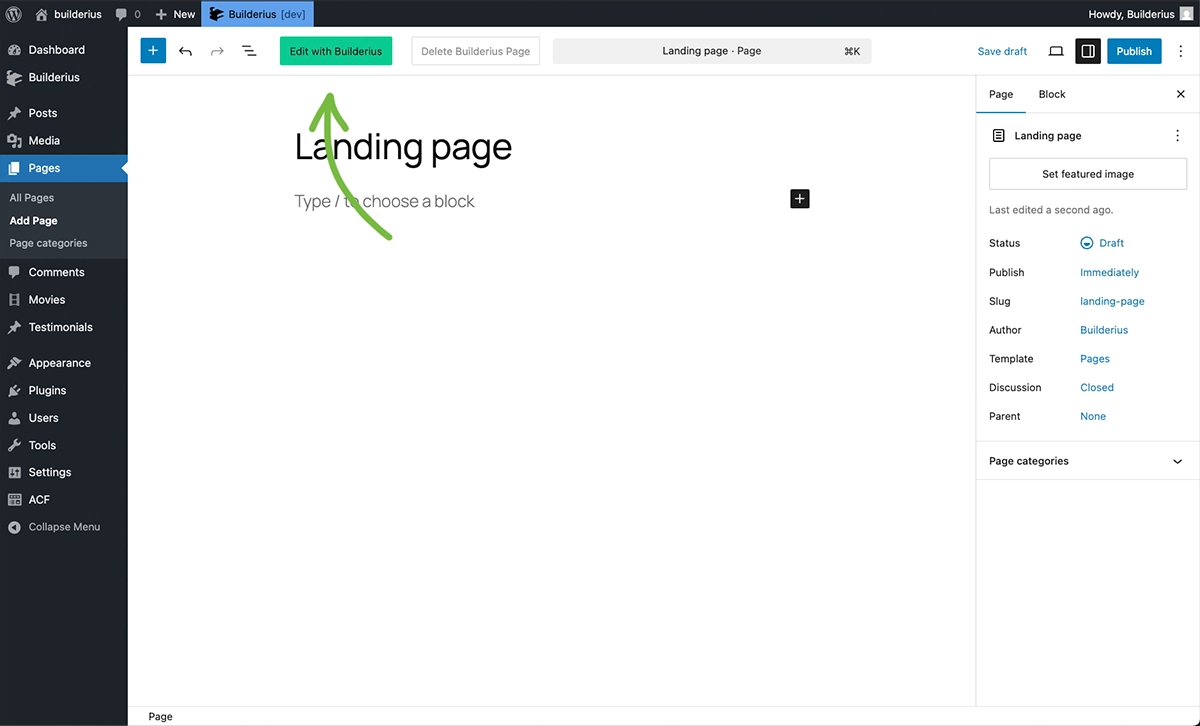
On any website with Builderius installed, every page and post displays an Edit with Builderius button in the WordPress admin bar. Click this button to open the page in Builderius builder.
Where to find it:
- On any page in the native WordPress editor
- Works on both published and draft content
Inside the Builder
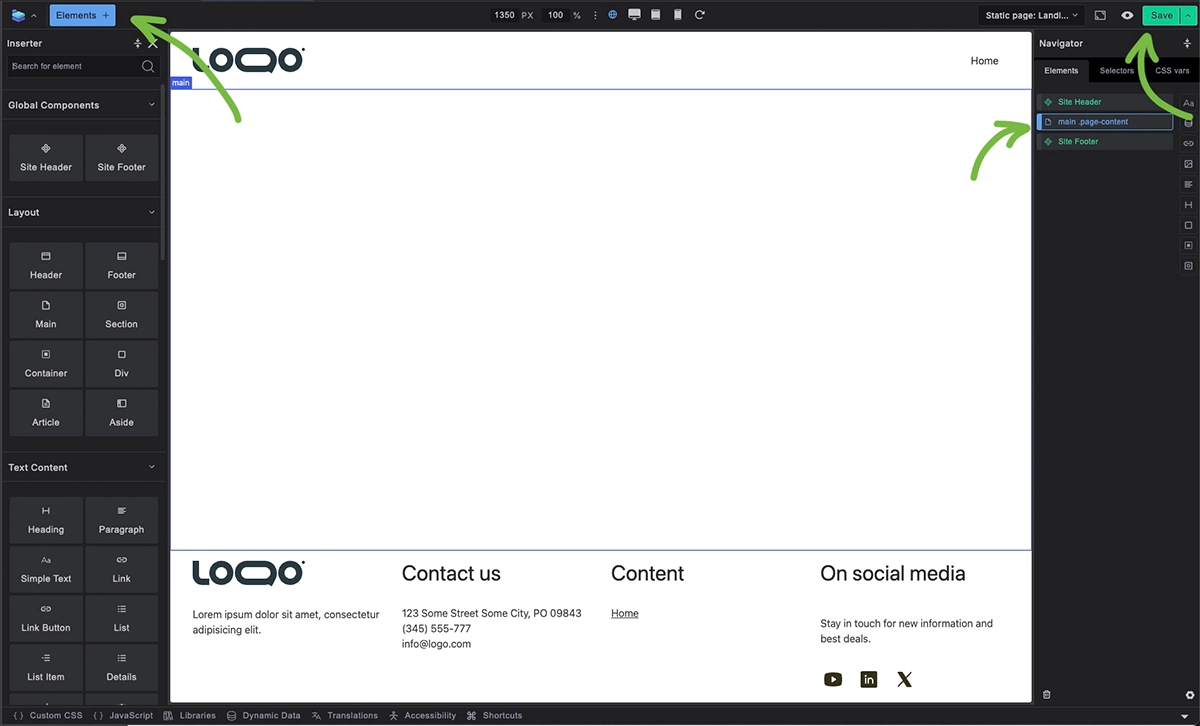
When you open a page in Builderius, you'll see the typical builder interface with your site header and site footer automatically included. The main content area between them is where you'll design your page.
Getting started:
- Select the main content element in the structure panel
- Use the elements inserter to add content
- Design your unique page layout
- Remember to save your work using the save button
The header and footer are automatically added to each page and template, it's easy to edit them too straight from where you are. Learn more about editing header and footer
Managing pages edited with Builderius
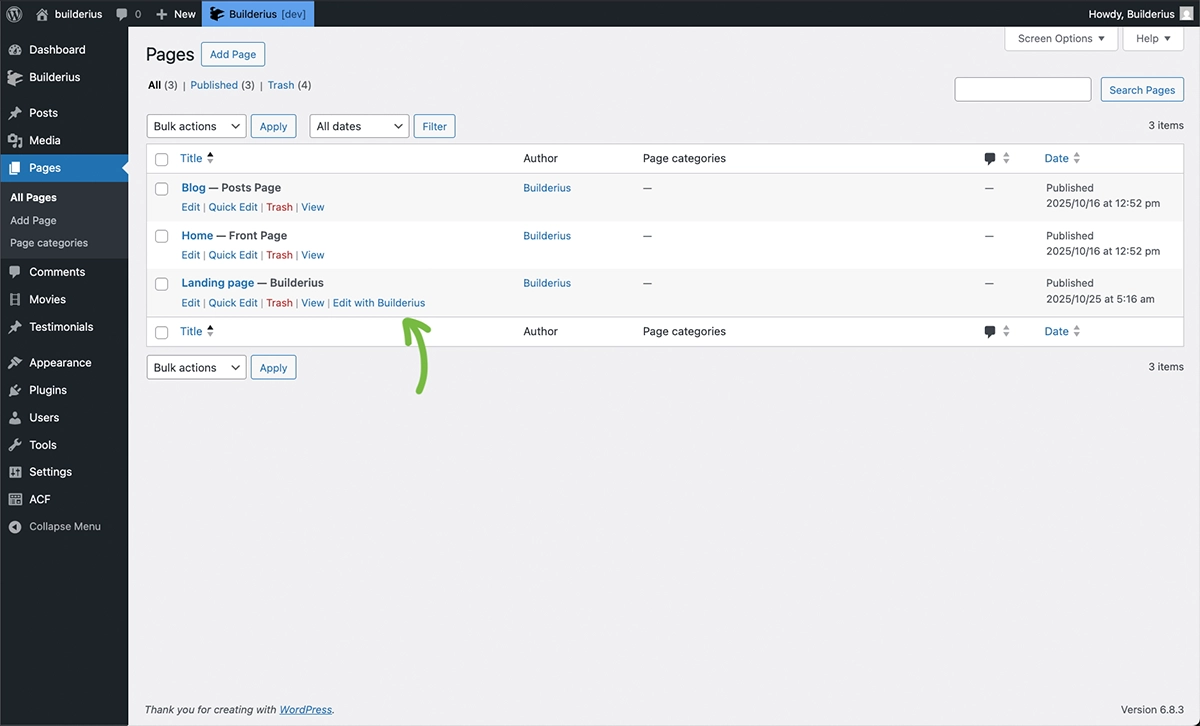
Pages designed with Builderius are clearly marked in your WordPress admin. In the Pages list, you'll see:
- "Edit in Builderius" link - takes you directly to the builder
- Page title link - opens the standard WordPress editor
- Clear indication which pages use Builderius designs
This makes it easy to see at a glance which pages have custom Builderius layouts versus the ones controled by templates.
Switching between editors
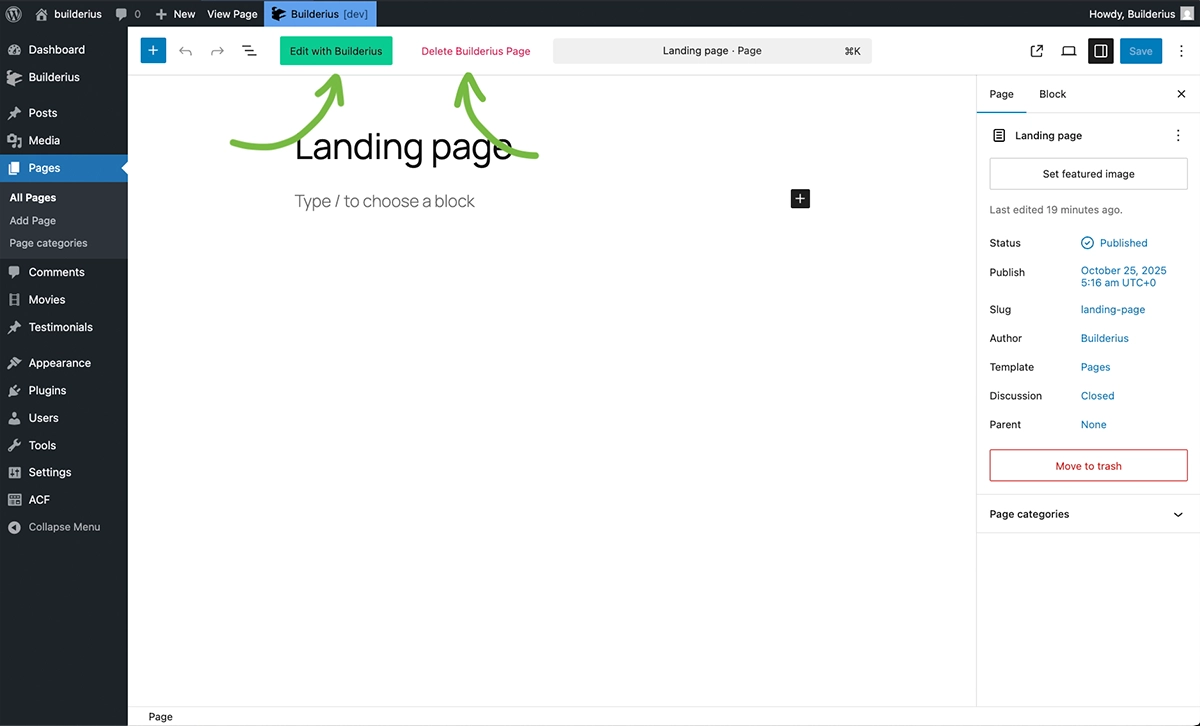
From the WordPress page editor, you have two options:
Edit with Builderius - Return to the visual builder to modify your design
Delete Builderius Page - Remove the Builderius design and return to design coming from a template.
Clicking Delete Builderius Page permanently destroys all the design work you've done on that page in Builderius. The page will revert to standard WordPress content or any applicable templates. This action cannot be undone.
When to use direct page editing
Perfect for:
- Custom homepage designs
- Special landing pages
- Unique promotional content
- Pages with one-off layouts
- Complex, page-specific functionality
Avoid for:
- Regular blog posts (use Single Post template)
- Standard pages with similar layouts (use Single Page template)
- Pages you want to update globally with template changes