Build your first template
Let's create your first template - a simple coming soon page that teaches you the complete Builderius workflow from building to publishing live.
We'll use the Entire Website template, which is the best template for a coming soon message since it applies to every page on your site.
Create your template
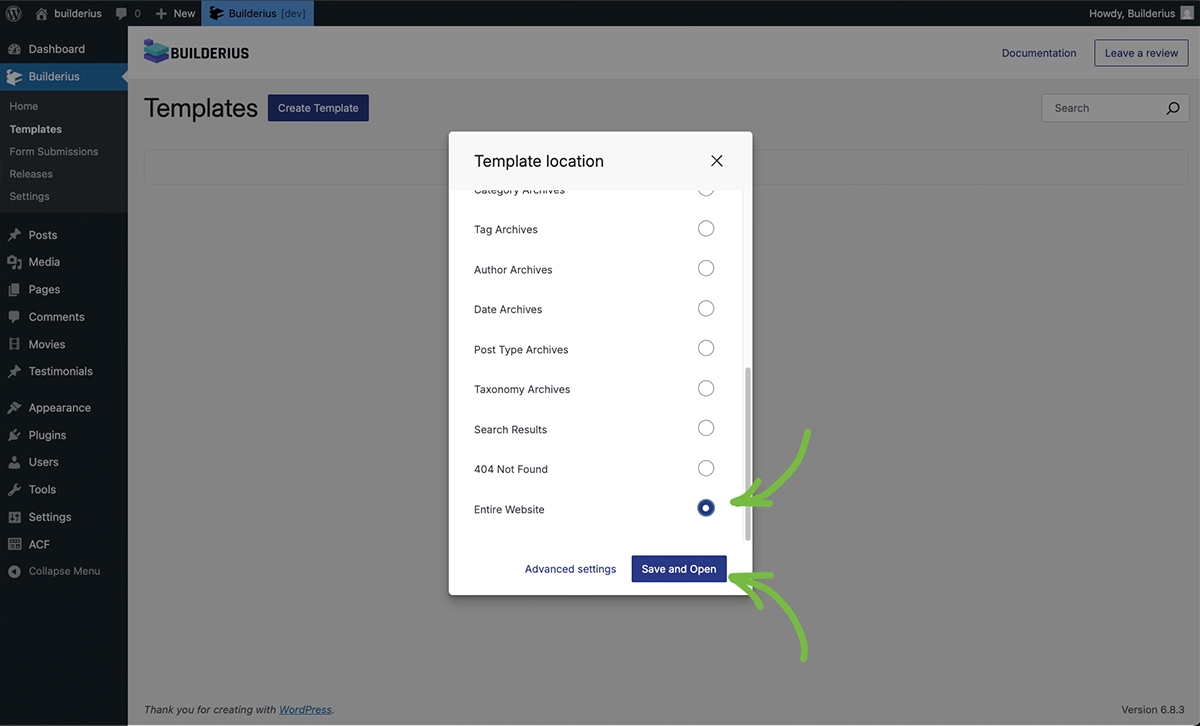
- Go to Builderius → Templates
- Click Create Template
- Select Entire Website from the location list
- Click Save and Open
You'll enter the visual builder with a basic page structure - header, main content area, and footer.
Add your message
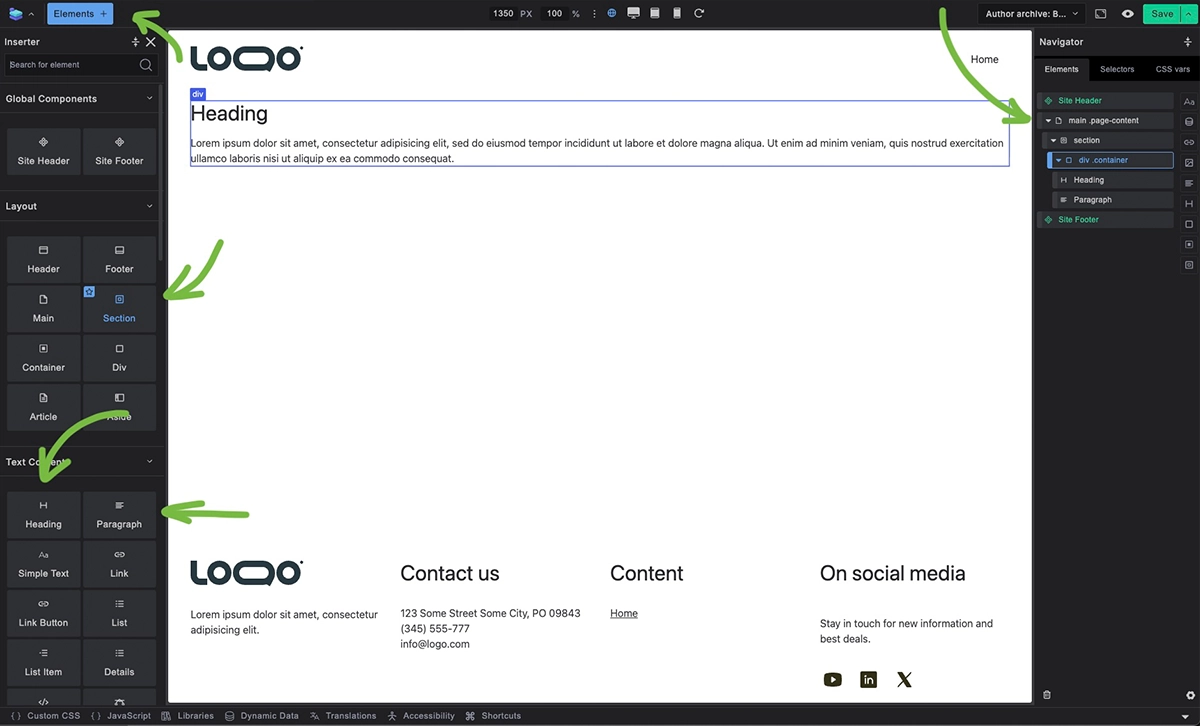
Add your coming soon message in the main content area:
- Click in the main content area
- From the Element Inserter, add a Section element
- Then add a Heading element
- Type your message: "Coming Soon"
- Add a Paragraph element below it
- Add a brief description: "We're working on something amazing. Check back soon!"
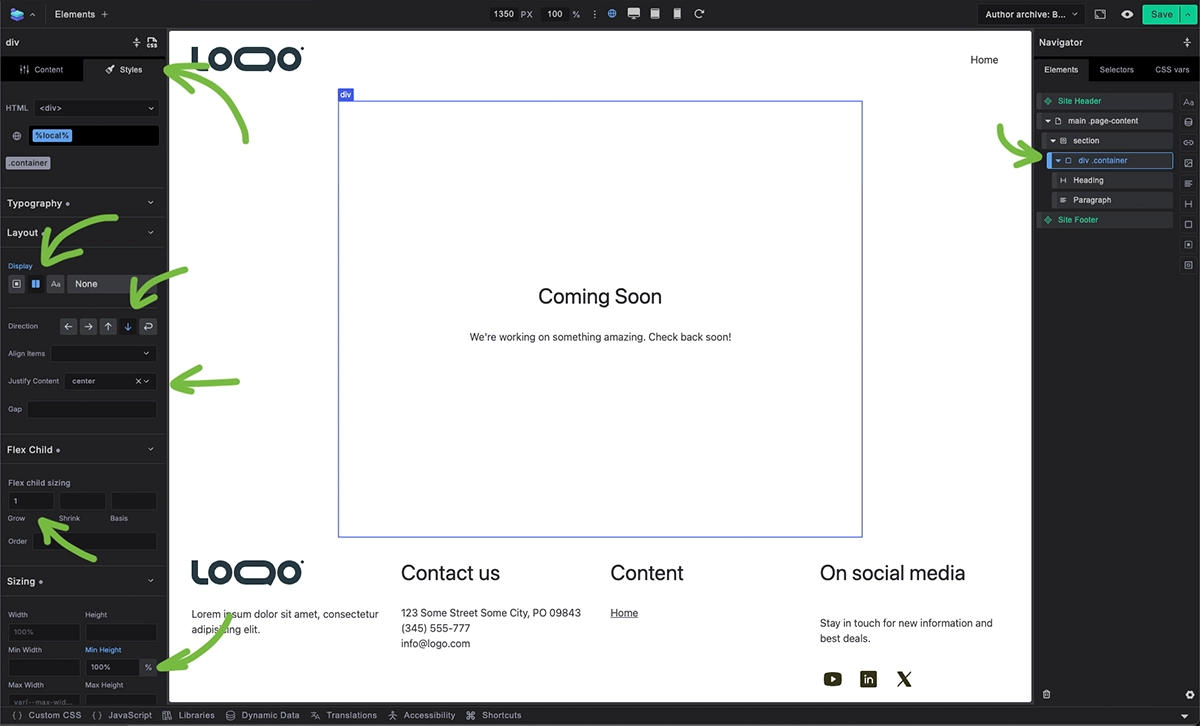
Style these elements as desired using the Style controls.
Customize the header
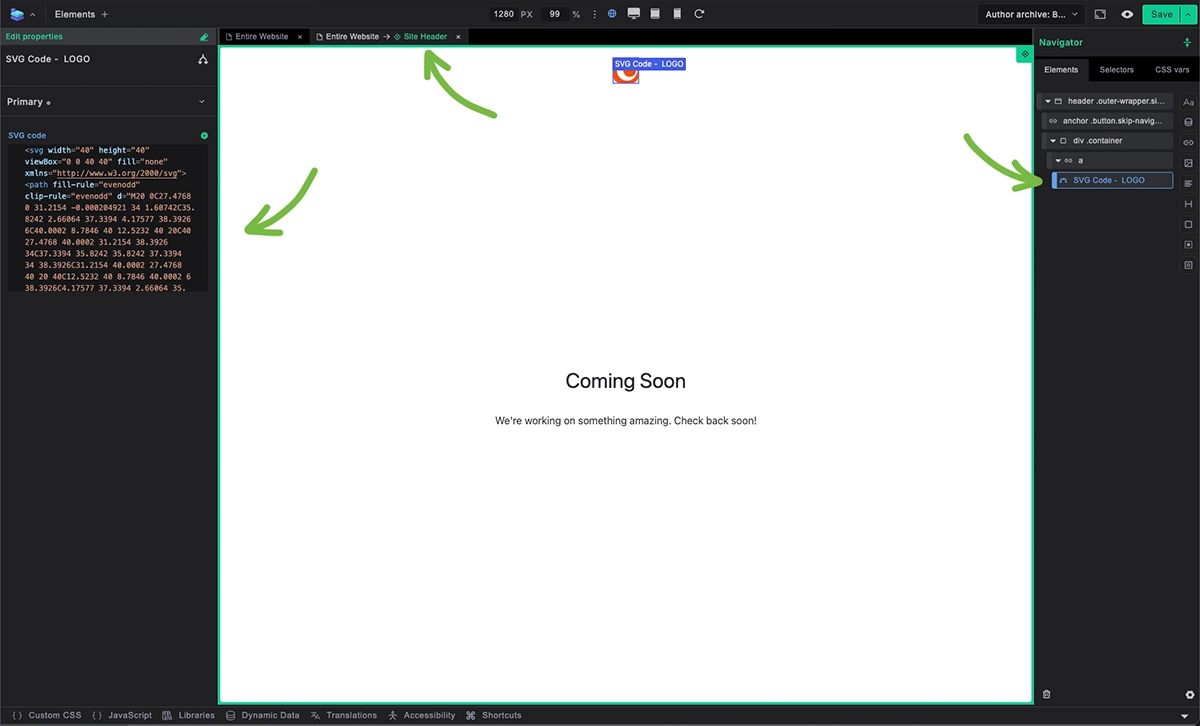
Let's simplify the header for your coming soon page:
- Right-click on the Site Header component in the Navigator panel
- The Site Header component will open as a new tab above the canvas - you can now switch between template and component editing using tabs
- In the Navigator, you'll see all the contents of the Site Header component
- Delete the Menu Builder with all its content
- Add an SVG Code element inside the link element and paste your logo SVG code (or add an Image element and upload it)
- Close the component tab to exit component editing mode
- Right-click on the Footer Component and select Delete
Your header now shows just your branding without the navigation.
Save your work
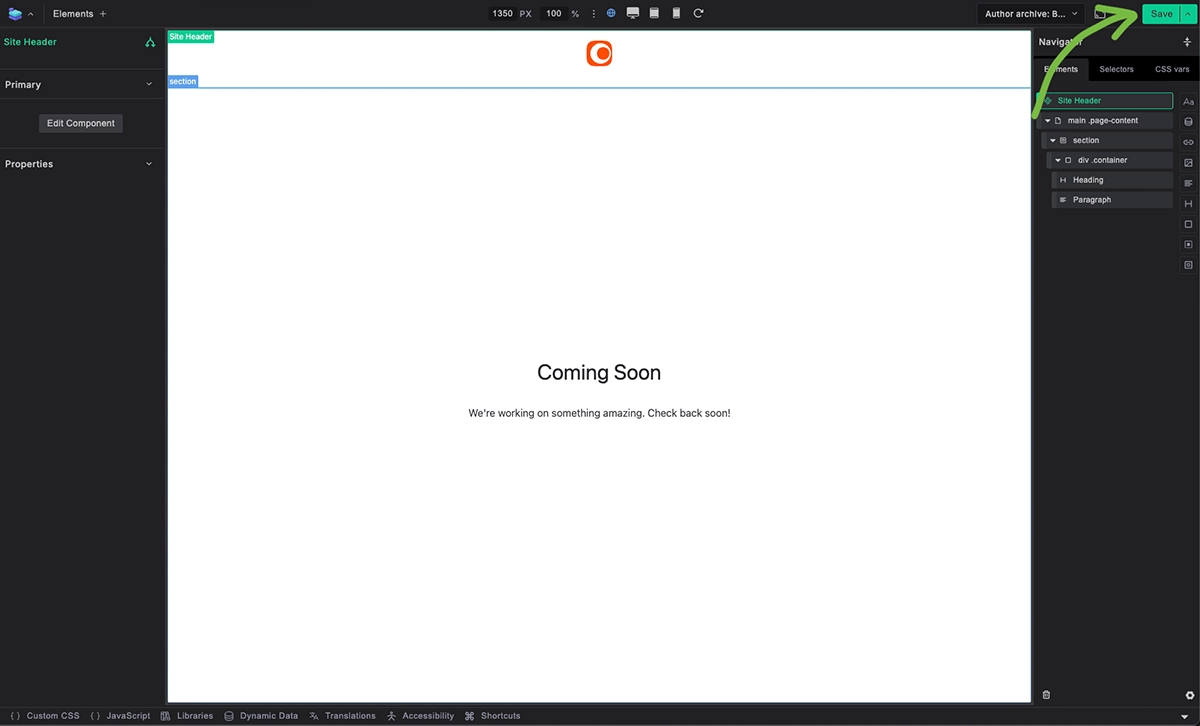
Always save your progress:
- Click the Save button in the top bar
- Your template is now saved in development mode
Remember: Your changes are only visible to logged-in admins right now. Visitors still see your old site.
Publish your template
Now comes the crucial step - making your work live for everyone to see.
Create and publish a release
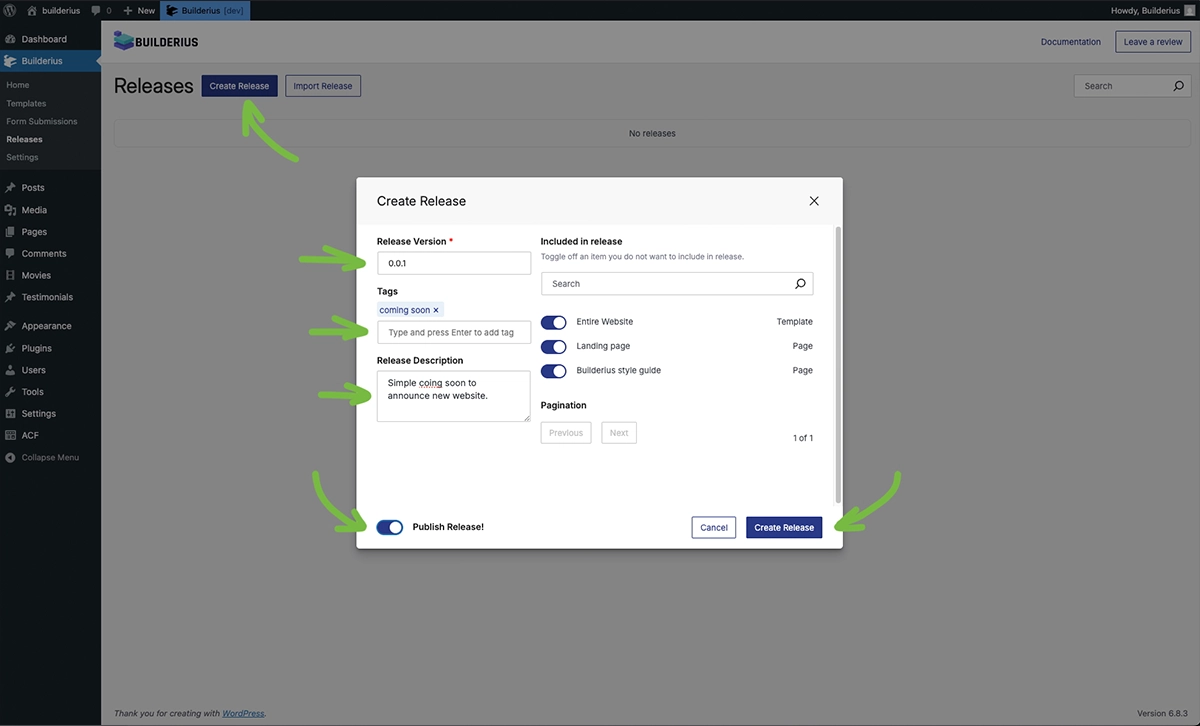
- Go to Builderius → Releases
- Click Create Release
- Give it a name: "Coming Soon Page"
- Add a description: "Simple coming soon template"
- Check the Publish toggle
- Click Create Release
Your coming soon page is now live! Visit your site in a private browser window (or log out) to see what visitors see.
What you just learned
Congratulations! You've completed the entire Builderius workflow:
✅ Created a template that applies site-wide
✅ Built a design using visual controls
✅ Saved your work in development mode
✅ Created a release to package your changes
✅ Published the release to make it live
This is the same professional workflow you'll use for every project, whether it's a simple coming soon page or a complex website.
Next: Ready to build a complete site? Let's set up proper templates with Quick Starters.