Creating and Publishing a Release
A release is a version of your whole site: its templates, components and global settings, packaged together under a version number. Publishing a release is what moves work from dev to production.
Releases are also your milestones. Each one stays in the list, so you can go back to it, export it, or use it on another site.
The Releases Page
In the WordPress admin, go to Builderius → Releases.
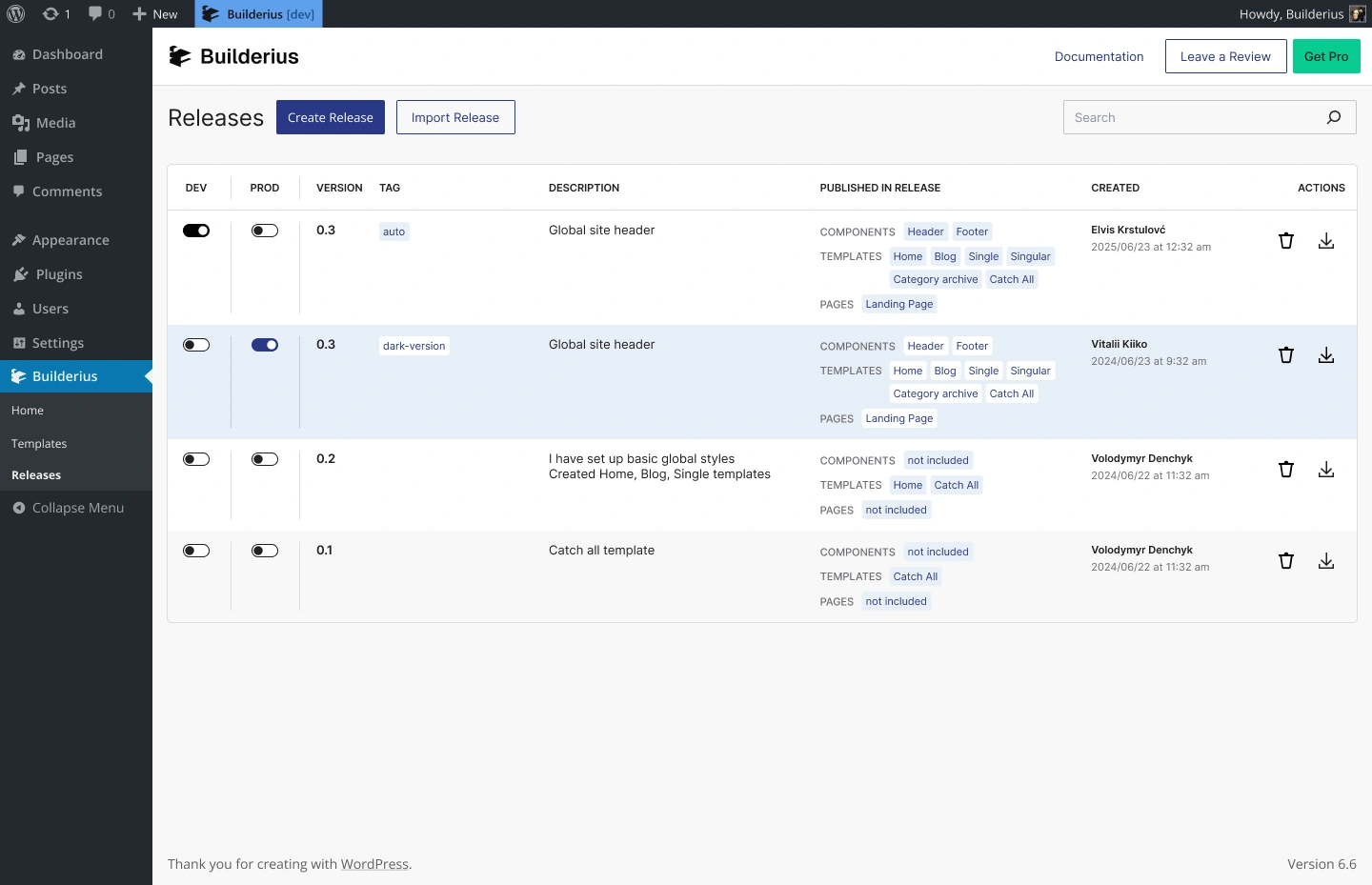
The list shows every release with its version, tags, description, what is included, when it was created, and whether it is published. Above the list are Create Release, Import Release and a search field.
Creating a Release
Click Create Release to open the Create Release window.
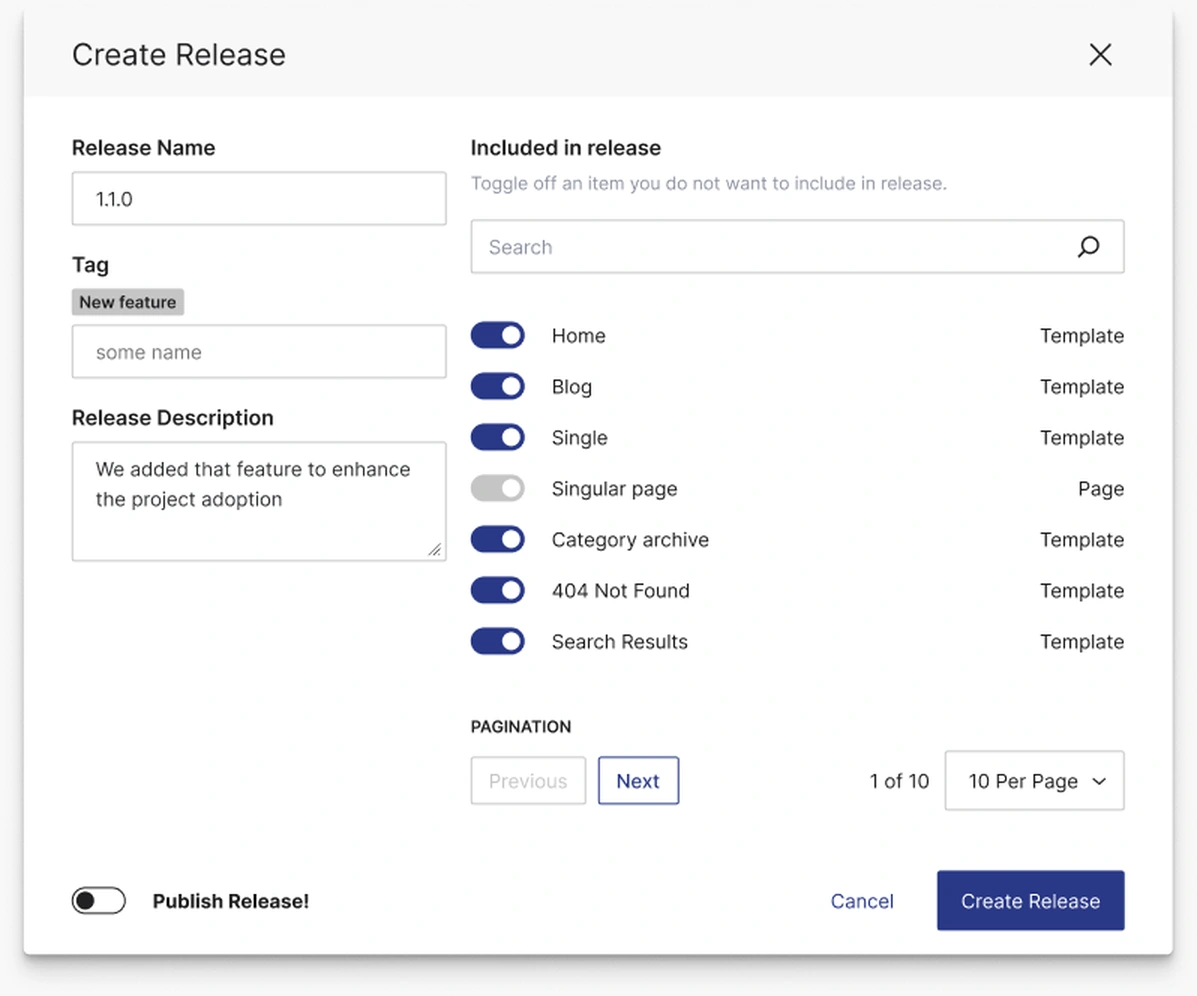
- Click Create Release
- Type a Release Version, for example
1.0.1 - Add a Release Description: what was added or changed
- Check Included in release and switch off anything you do not want in it
- Turn on Publish Release! if it should go live right away
- Click Create Release
About what is included:
- Global settings are always included
- Components are included automatically when a template in the release uses them, so they are not listed separately
- Everything else can be switched off item by item
Publishing a Release
Publishing makes a release's templates and global settings live on the website. It replaces the currently published release.
Use the Published switch on the release in the list. Switch it off again to unpublish.
If the release carries WordPress data, such as pages, posts or menus, Builderius asks how to publish:
- Publish with all WP data
- Publish with required data only
- Publish without WP data
Required items are always brought in, so Builderius pages keep working.
The Automatic Release
When you use Publish to Live in the builder, Builderius keeps an automatically generated release for you. It is a rolling release: it is updated as you do more work, so it always holds your latest published state.
To keep a point in time, choose Set as milestone in its actions. That locks it, and you can restore to it later like any release you created by hand.
Going Back to an Earlier Release
Because every release stays in the list, rolling back is just publishing an older release. Production goes back to that version, and your newer releases stay available.
Release Actions
Each release has a menu of actions:
- Export - download the release as a file. See Export and Import
- Deploy - send the release to a connected site or static host. See Sync between sites
- Work on this release - load the release into dev, to continue from it. See Importing a release
- Set as milestone - lock the automatic release
- Delete release - remove it for good
Work on this release replaces all templates and global settings currently on the site with the ones in that release. Delete release removes all the work stored in it. Create a release of your current work first if you want to keep it.
Tags help you find releases later. In the Tags field, type a word and press Enter.
Best Practices
Release at milestones. A homepage finished, a client approval, a redesign: each deserves its own version.
Write a real description. "Added pricing page and new footer" will mean something in six months.
Check in [live] after publishing. See Previewing Dev and Production.
Common Issues
- Visitors still see the old site: The release was created but not published. Switch on Published
- A component is missing from the list: Components come along automatically with the templates that use them
- My current work disappeared after "Work on this release": That action replaces what is on dev. Restore from the release you made before it
Next steps: