Template
The Template element provides conditional content containers and recursive loop structures using the HTML <template> tag. It serves as a non-rendering wrapper that holds HTML fragments for use in dynamic content generation, particularly within Collection elements.
This is a non-container element - it doesn't wrap content in additional HTML and does not render on the front end. It provides structure for dynamic content generation. Learn more about element types →
Template Element Settings
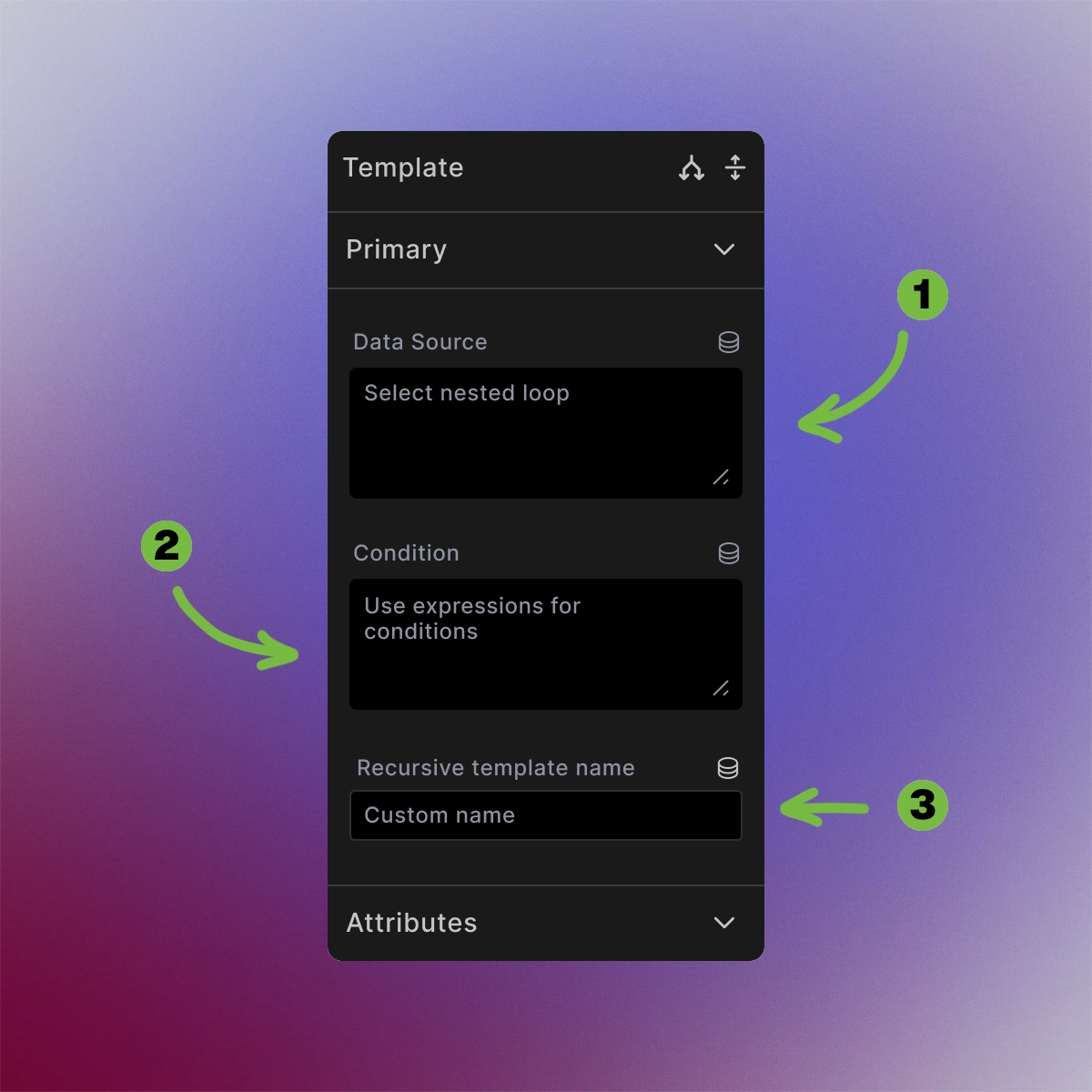
The Template element provides dynamic content configuration options:
- Data Source: Select nested loop data when used within Collection elements for hierarchical content structures.
- Condition: Use expressions for conditional display through the
data-conditionattribute - content only renders when conditions are met. - Recursive template name: Set a custom string value for
data-recursive-nameattribute to enable recursive repetition within collections.
When used inside recursive loop structure, you have to place one Template element at the begining of the html structure you want to repeat recursively, and one Template element on the end of the html structure. Both Template elements have to have the same Recursive template name.
Required in Collections
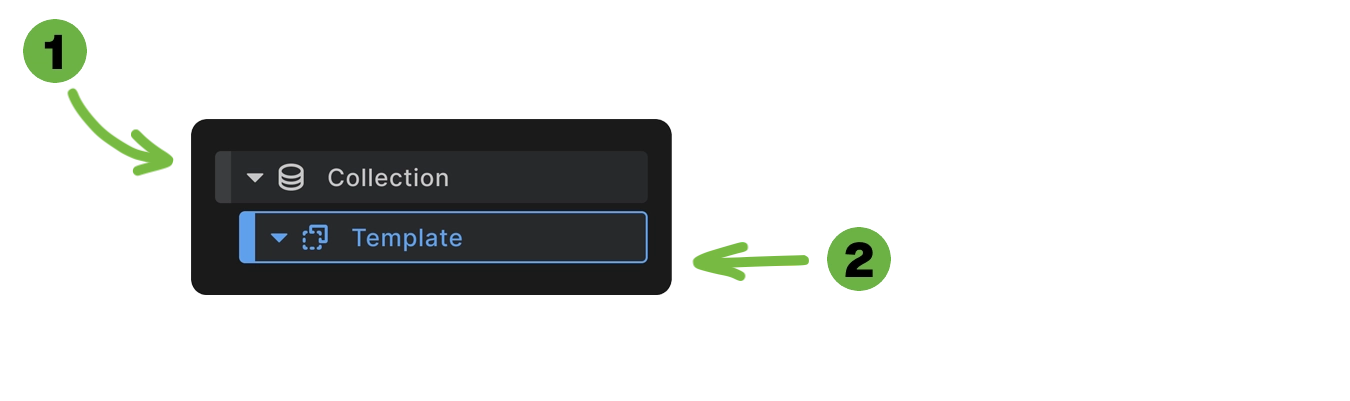
The Template element is automatically created inside Collection elements and serves as the container for repeating content. Everything placed inside the Template element gets repeated for each data item in the Collection's array.
<div class="collection-wrapper">
  <template>
    <!-- Content here repeats for each collection item -->
    <div class="item">
      <h3>{{item.title}}</h3>
      <p>{{item.content}}</p>
    </div>
  </template>
</div>
Without the Template element, Collections cannot function - it defines what content structure gets repeated.
Conditional Rendering
The Template element supports conditional display through the data-condition attribute:
<template data-condition="user.isLoggedIn">
  <div class="member-content">
    <p>Welcome back, premium member!</p>
  </div>
</template>
How conditions work:
- Expressions are evaluated against available dynamic data
- Template content only renders when condition evaluates to true
- Supports complex expressions with logical operators
- Works with any dynamic data source available in context
Learn more about Expressions
Recursive Functionality
For nested repeating structures, use the Recursive template name field (data-recursive-name attribute):
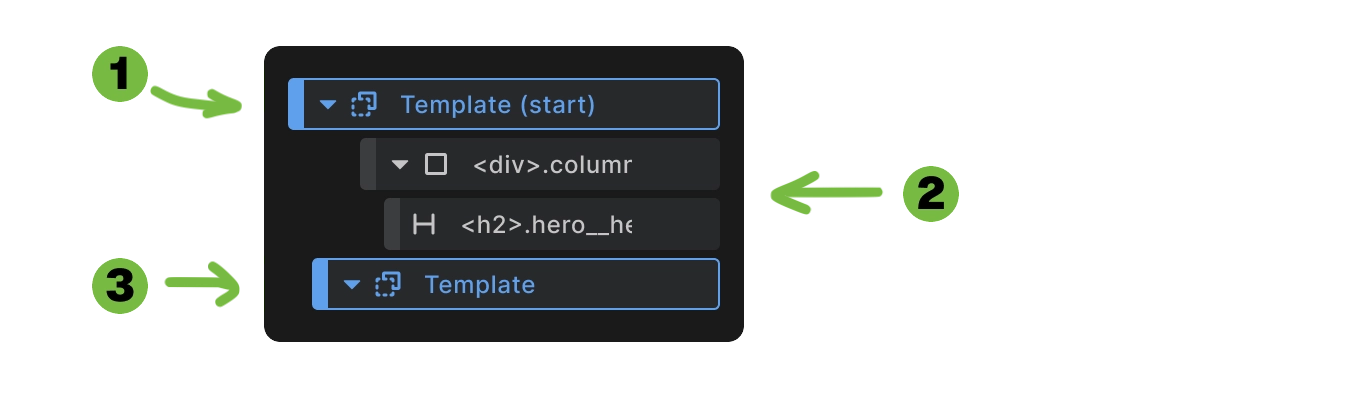
- First Template element holds entire block that will be repeated recursively
- Put the content Inside First Template element
- Second Template element marks the end of block that will be repeated recursively (placed also inside the first Template element)
Requirements:
- Must have a string value (any custom name)
- Same value needed at start and end of recursive block
- Tells Collection what content to repeat recursively
<template data-recursive-name="menu-item"> <!-- Recursive block starts here -->
  <li>
    <a href="{{item.url}}">{{item.title}}</a>
  </li>
  <template data-recursive-name="menu-item"></template> <!-- Recursive block ends here -->
</template>
This enables unlimited nesting levels for hierarchical data like navigation menus, category trees, or comment threads.
Using Outside Collections
Template elements can be used independently with custom JavaScript:
<!-- Template definition -->
<template id="image-template">
  <div>
    <img src="https://picsum.photos/300/200" alt="Template image">
    <button class="close-btn">Close</button>
  </div>
</template>

<!-- HTML Code element with JavaScript -->
<script>
document.addEventListener('DOMContentLoaded', function() {
  const showImage = () => {
    const template = document.getElementById('image-template');
    const clone = template.content.cloneNode(true);
    document.body.appendChild(clone);

    // Add event listener to the newly created close button
    const closeBtn = document.querySelector('.close-btn:last-of-type');
    closeBtn.addEventListener('click', function() {
      this.closest('div').remove();
    });
  };

  document.getElementById('show-button').addEventListener('click', showImage);
});
</script>

<button id="show-button">Show Image</button>
Future development: Additional elements will leverage Template's power for various dynamic content scenarios.
Browser Implementation
Based on the HTML standard template element, Template provides:
- Hidden content containers that don't render by default
- Document fragments that can be cloned and inserted dynamically
- Conditional rendering through attribute-based expressions
- Recursive structures for nested data
Content inside Template elements exists in the DOM but remains invisible until activated by Collection loops, JavaScript, or conditional expressions.
When to Use Template
Use Template elements for:
- Content that repeats within Collections
- Conditional display based on dynamic data
- Recursive structures like navigation menus
- Custom JavaScript-driven content generation
Template elements are automatically provided in:
- Collection elements (required)
- Future interactive elements that need dynamic content
Next steps: