Selectors
A selector says what a style applies to. Builderius does not limit you to classes: you can use any CSS selector - a class, an id, an element, an attribute, a hover state, or a combination of them.
All of it happens in one place: the selector input in the Styles tab.
The Selector Input
The input always shows one active selector. Every control you change, and every line of CSS you write, goes to that selector.
%local%is the default. It means "this element only" and needs no class- The chips under the input are the other selectors that affect this element. Click a chip to make it the active one
Creating a Selector
Click the input and type the selector exactly as you would write it in CSS. A small window opens under the input and offers what it can do with what you typed. The first row is the default: press Enter to take it, or click the row you want.
A class

Type a class, with its dot. You get two options:
- Create & add to element - creates the class and puts it on the selected element. This is the default, because it is almost always what you want
- Create selector - creates the class without adding it to the element
A class with a state
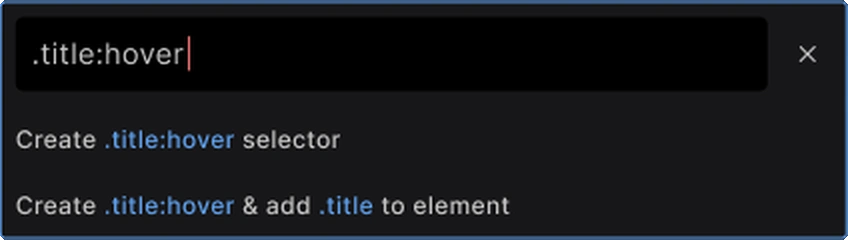
A state such as :hover or :focus is simply part of the selector. There is no separate hover menu.
- Create selector - creates the hover rule only. This is the default
- Create & add the class to element - also puts the base class on the element, when it is not there yet
An element

Type a tag name such as article or h2 to style every element of that kind. There is one option, because there is nothing to add to the element.
An attribute
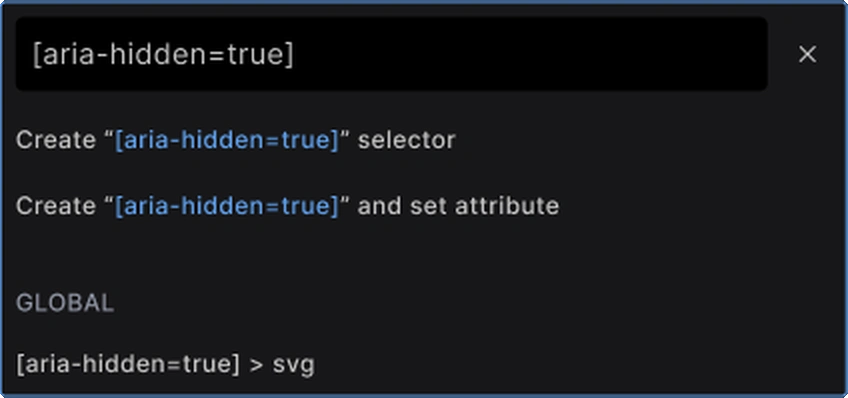
- Create selector - creates the rule only. This is the default
- Create and set attribute - also writes the attribute on the selected element
Below the options you see existing selectors that match what you typed, grouped by scope.
An id
Type an id with its hash, such as #hero. You can create the selector only, or create & set ID on element. An element can have only one id.
One selector with several parts
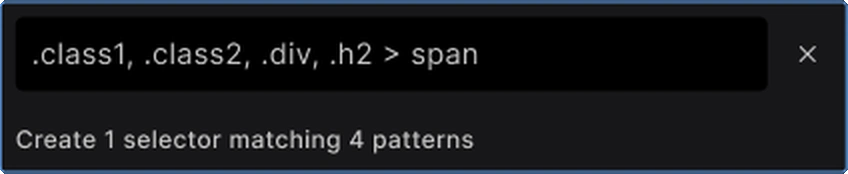
Separate the parts with commas, as in CSS. The result is one selector that matches all of them.
Several classes at once
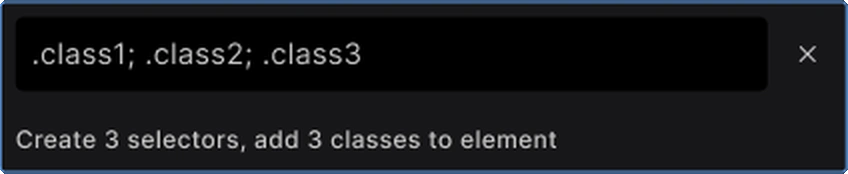
Separate classes with semicolons to create them all in one go and add them all to the element. This works with classes only.
Picking an Existing Selector

Start typing and the window lists the selectors that already exist, grouped by scope. Pick one to style it. If it is a class the element does not have yet, the icons on its row let you add it to the element or style it without adding it.
Validation
Builderius checks the selector while you type. When something is wrong, the text turns red and a message says why.
Not recognized by your browser

The selector is complete, but your browser does not know it. That can be a typo, or a selector your browser does not support.
Selector is incomplete
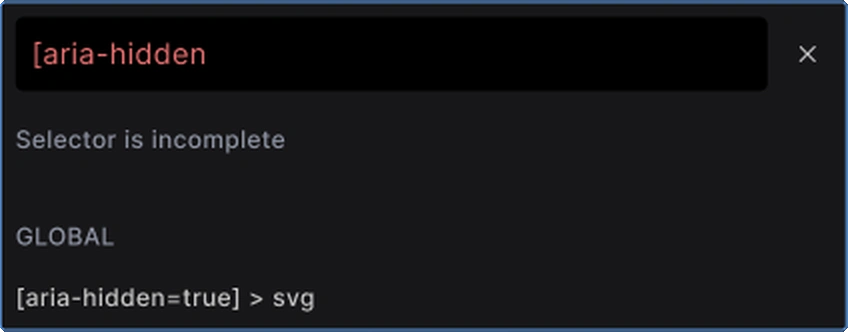
Something is missing: a closing bracket or quote, or the part after a comma, a dot or a colon. An incomplete selector cannot be created. Finish it and the options come back.
Use ; with classes only

Semicolons create several classes at once. They cannot be mixed with other kinds of selectors.
Selector Actions
Right-click a chip, or open its menu:
- Rename - give the selector a new name
- Detach class - remove the class from this element. The selector and its styles stay
- Remove id - take the id off the element. Its styles stay
The Selectors Panel
The Selectors tab in the Navigator lists every selector on your site, not only the ones on the element you selected. They are grouped into Elements, Classes and Custom Selectors.
The panel has its own scope switch at the top. It is synced with the one in the Styles tab: change it in either place and both follow.
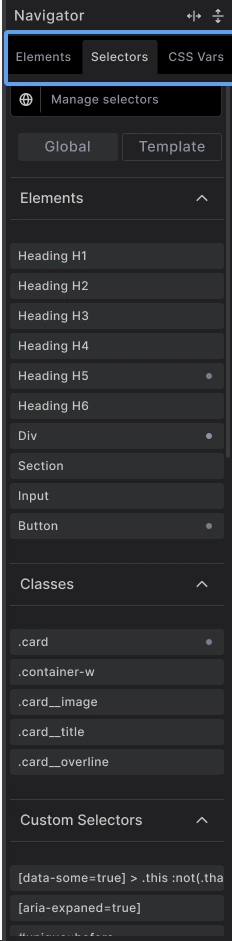
Use it to find a selector without selecting an element first, to see what already exists, and to create selectors that are not tied to any one element. The input there works the same way as the one in the Styles tab.
Best Practices
Use %local% for one-offs: No need to invent a class name for a single adjustment.
Use classes for anything repeated: If you style it twice, make it a class.
Style elements in Global: Selectors like h1, a or button in Global scope give the whole site a consistent base.
Keep selectors simple: A short selector is easier to override later than a long one.
Common Issues
- My styles do not apply: Check which selector is active in the input. You may be styling a different one than you think
- The class was created but not added: You picked "Create selector" instead of "Create & add to element". Add it from the list
- I cannot create a second id: An element can have only one id
Next steps: