CSS Variables
A CSS variable is a named value you can reuse anywhere: a color, a font size, a spacing step, a border. Change the variable once and every place that uses it updates.
Builderius uses standard CSS variables (custom properties), such as --color-accent. They work in the visual controls and in code alike.
The CSS Vars Panel
Open the CSS Vars tab in the Navigator.
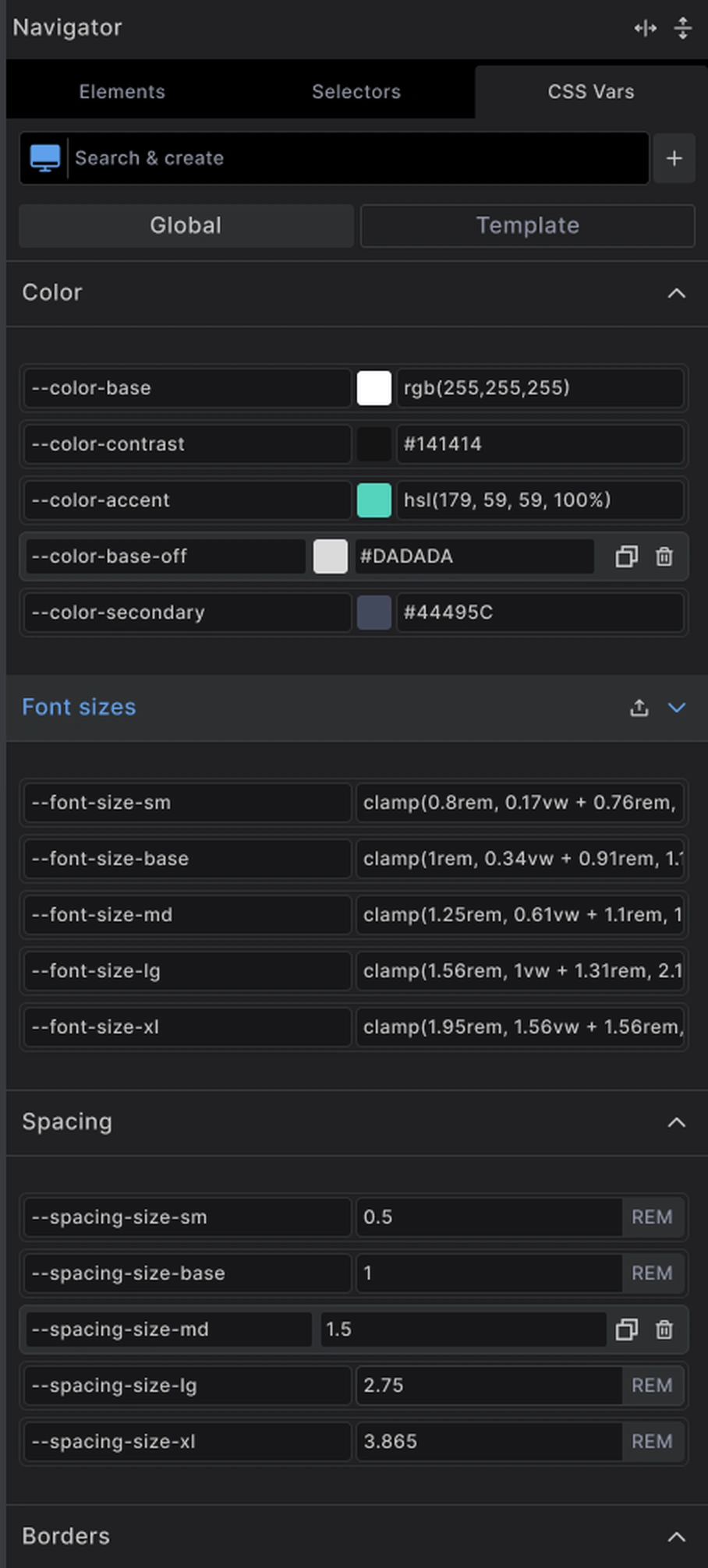
- Search & create - type to find a variable by name, or to start a new one
- + - create a variable
- Scope switch - Global or Template, the same scopes as everywhere else. See Scopes
- Groups - variables are grouped by what they hold, such as Color, Font sizes, Spacing and Borders
Each row is a name and a value. Click either one to edit it. Colors have a color swatch that opens the picker, and sizes show their unit at the end of the field. The panel adapts to its width: drag the sidebar wider and each variable sits on one line.
Creating a Variable
- Open the CSS Vars tab
- Pick the scope
- Click +
- Type a name, starting with two dashes, for example
--color-accent - Type the value
Name variables by what they hold. A shared prefix keeps them together: --color-, --space-, --text-.
A value can be anything CSS allows:
--color-accent: #0070f3;
--space-md: 1.5rem;
--text-lg: clamp(1.56rem, 1vw + 1.31rem, 2.11rem);
--border-normal: 1px solid var(--color-contrast);
Color pickers support modern color formats, including OKLCH.
Using a Variable
In a style control: click into a field and pick a variable from the list, or type it as var(--color-accent). Builderius suggests the variables that fit the field you are in.
In Code mode: write it like any CSS:
.card {
  padding: var(--space-md);
  background: var(--color-base);
}
A field that uses a variable shows the variable name instead of a fixed value. To go back to a fixed value, remove the variable from the field.
Variables on a Single Selector
Variables do not have to be global. In the Styles tab, open Advanced styles and click New Variable to set a variable on the selector you are styling.
This is useful for changing a value for one part of the page:
.card--dark {
  --color-base: #141414;
  --color-contrast: #ffffff;
}
Everything inside .card--dark now uses the dark values, with no other change.
Best Practices
Variables first, then styles: Decide your colors, type sizes and spacing as variables before you style much.
Never repeat a raw value: If the same color or size appears twice, it should be a variable.
Keep the list short: A small set you know by heart is worth more than a long one.
Common Issues
- The variable has no effect: Check the name. It must match exactly, including the two dashes
- I cannot find my variable: It may be in the other scope. Flip the scope switch in the panel
- A value looks different in one place: A selector there may set the same variable to another value
Next steps: