UI and Code Mode
Every style in Builderius can be edited in two ways: with visual controls (UI mode) or as CSS code (Code mode). They are two views of the same thing. Change a control and the code updates. Write code and the controls update.
Code mode is available in Builderius Website, Professional and Studio. Builderius Community (Free) has the visual controls only.
UI Mode
UI mode is what you see by default. The Styles tab shows the style sections - Typography, Layout, Sizing, Spacing and the rest - and each one holds controls for the CSS properties in that group.
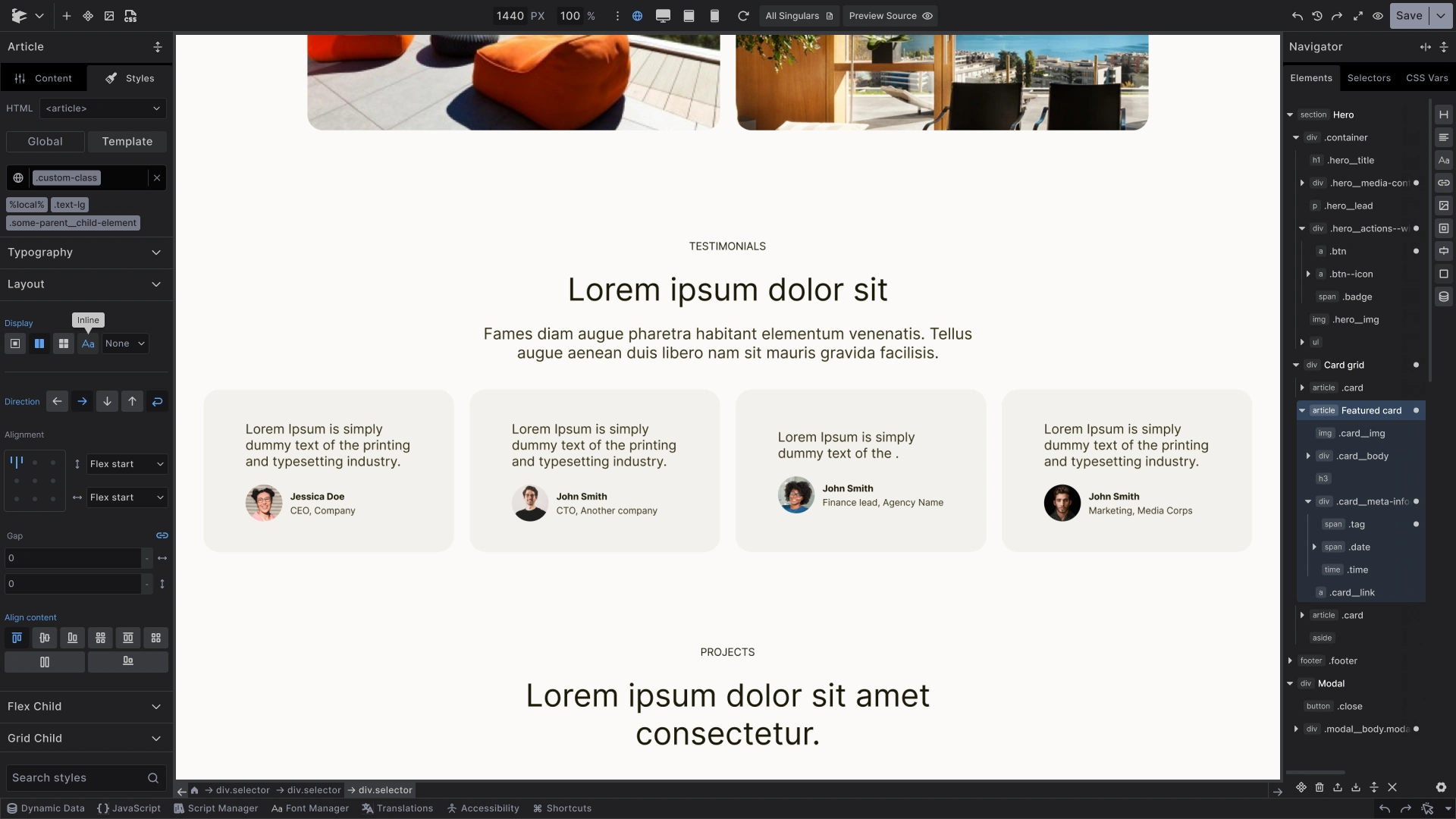
Pick a value, drag a slider or type a number, and Builderius writes the CSS property for the selector in the selector input. Use Search styles at the bottom to find a control by name.
Code Mode
Turn on the code toggle in the top bar, the button with the CSS icon. The button turns blue, and the style sections are replaced by a CSS editor holding the code of the same selector.
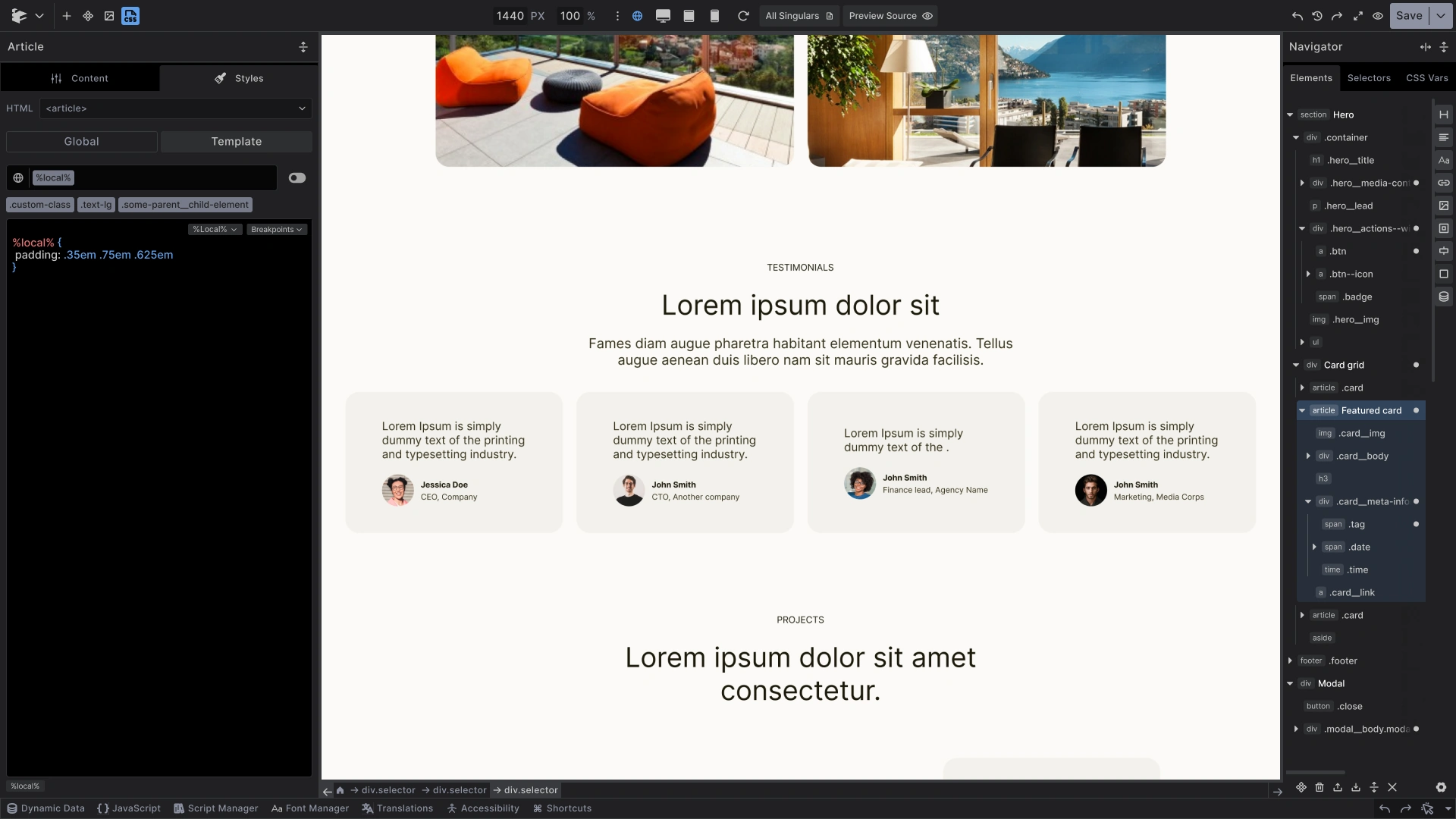
Click the toggle again to go back to the visual controls. You can switch at any time. Nothing is converted or lost, because both modes read and write the same CSS.
Writing CSS for a Selector
In Code mode you see the rule for the active selector, the one in the selector input:
%local% {
  padding: .35em .75em .625em
}
%local% stands for the element you selected. When you style a class or any other selector, you see that selector instead.
The editor has two helpers in its top corner:
- Selector shortcut - inserts the current selector, so you can add more rules for it, such as a hover state
- Breakpoints - inserts a breakpoint, so the rules inside apply from that screen size
You are not limited to what the visual controls offer. Any valid CSS works: properties with no control of their own, nested rules, @media, @supports, @scope and so on.
All CSS
In Code mode, a switch appears next to the selector input: the All CSS switch. Turn it on to see and edit everything in the current scope at once.
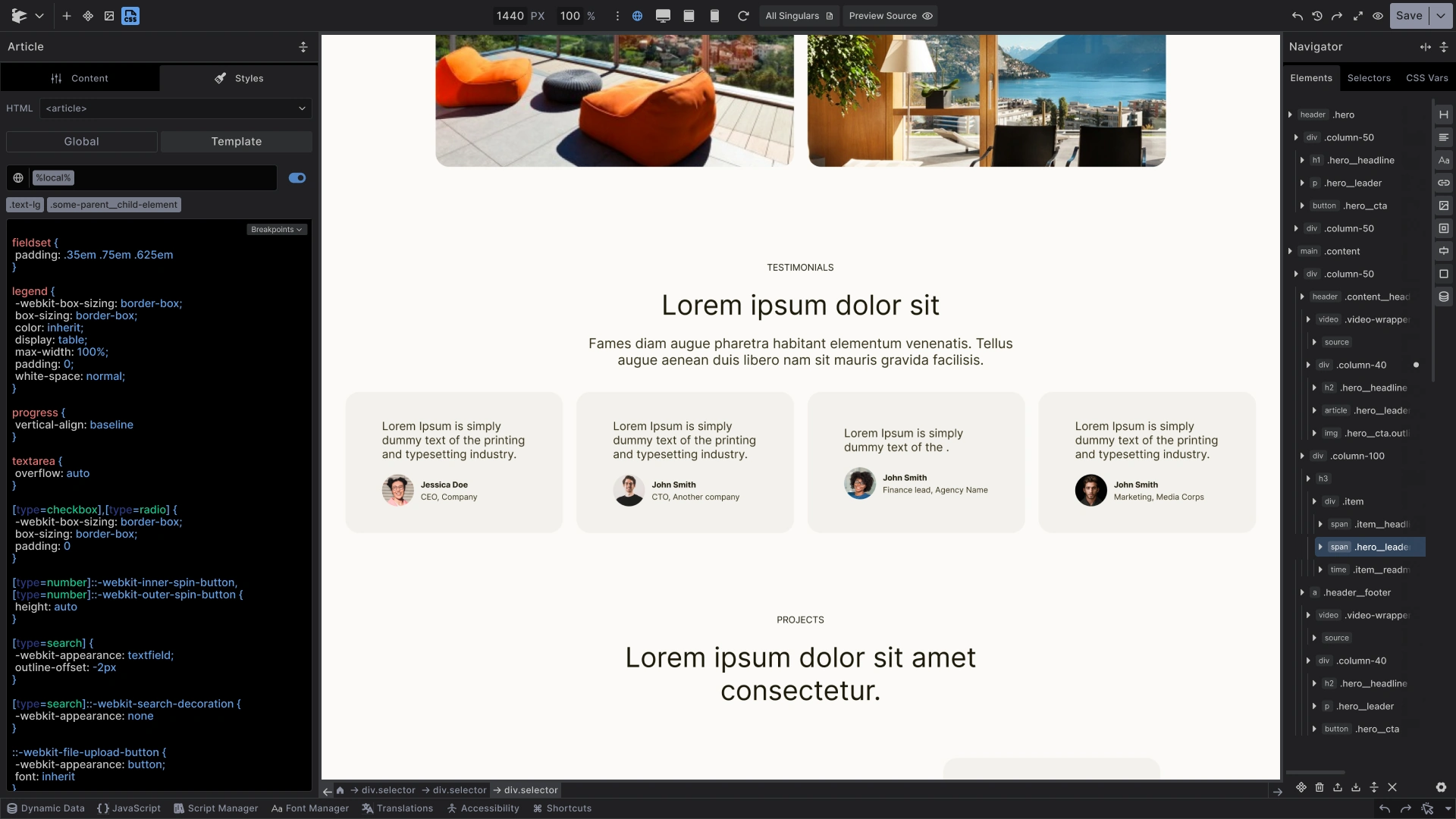
- Off - the editor shows the CSS of your current selection only
- On - the editor shows all CSS of the scope
- With nothing selected, turning on the code toggle opens All CSS directly
All CSS follows the scope you are in: Global shows the global stylesheet, Template shows the styles of this template.
When to Use Which
Use UI mode when:
- You want to see the options a property has
- You are adjusting spacing, layout or typography by eye
Use Code mode when:
- You already know the CSS you want
- You are pasting styles from somewhere else
- You need something the controls do not offer
Most people move between the two all the time. That is what the sync is for.
Common Issues
- The toggle does nothing: Code mode is not part of Builderius Community (Free)
- My rule disappeared: Check for a typo. CSS that is not valid cannot be kept
- I do not see my class in All CSS: You may be in the other scope. Switch between Global and Template
Next steps: