SVG Code
The SVG Code element lets you add custom SVG graphics directly to your page without any wrapper elements. SVG Code element renders exactly the code you write, giving you complete control over the SVG output.
This is a non-container element - it doesn't wrap your content in additional HTML and has no styling controls. It renders only the code you provide. Learn more about element types →
SVG Code Editor Interface
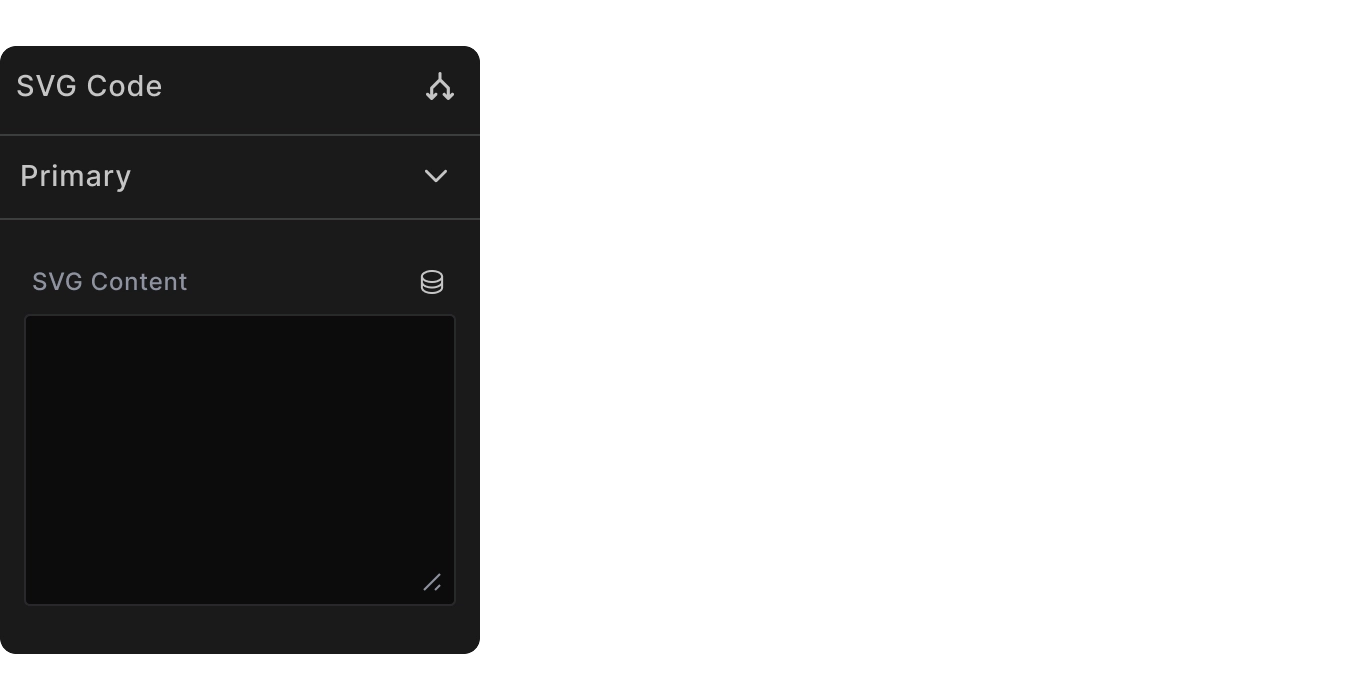
The SVG Code element provides a simple code editor where you can paste or write any valid SVG markup.
Common Use Cases
Custom icons: Create unique icons that match your brand exactly:
<!-- Logo icon -->
<svg width="32" height="32" viewBox="0 0 32 32">
  <circle cx="16" cy="16" r="12" fill="#007acc"/>
  <text x="16" y="20" text-anchor="middle" fill="white" font-family="Arial" font-size="14">B</text>
</svg>
Simple illustrations: Add custom graphics that scale perfectly:
<!-- Simple illustration -->
<svg width="200" height="100" viewBox="0 0 200 100">
  <rect x="20" y="60" width="160" height="30" fill="#8B5CF6" rx="4"/>
  <circle cx="50" cy="40" r="15" fill="#F59E0B"/>
  <circle cx="100" cy="30" r="20" fill="#EF4444"/>
  <circle cx="150" cy="40" r="15" fill="#10B981"/>
</svg>
Security Considerations
Validate external SVG: Be cautious when copying SVG from external sources. Ensure the SVG doesn't contain malicious scripts or references.
Script prevention: While rare, SVG can contain JavaScript. Only use SVG from sources you trust.
Best Practices
Valid SVG: Ensure your SVG is properly formatted and uses valid syntax to avoid rendering issues.
Optimize viewBox: Use appropriate viewBox dimensions for clean scaling across different sizes.
Use currentColor: Let SVG inherit text color from parent elements for flexible theming.
Accessibility: Include title and alt elements for screen readers when appropriate. When the SVG should be ignored by screen readers, use aria-hidden="true" to make it invisible to screen readers.
Limitations
No styling controls: The SVG Code element has no built-in styling options. But you can create selectors to target the SVG elements inside your code.
When to Use SVG Code
Use SVG Code when you need:
- Custom icons or illustrations
- Scalable graphics that stay crisp at any size
- Brand-specific visual elements
Use other elements when you need:
- Visual styling options
- Content management through the builder interface
Next steps: